Apple has always been a step ahead when it comes to implementing new technology with its devices. You must recognize Siri as among the very first voice assistants, and the touch screen was introduced with the iPhone. With smart wearable and fitness bands such as Apple Watch, being the latest trends, everyone needs to track their fitness activities. Along with the medical advancements, you can use these fitness bands to take care of you, even in emergency situations. With earlier versions of the Apple Watch 3 series, this feature was good to use for emergency SOS messages.
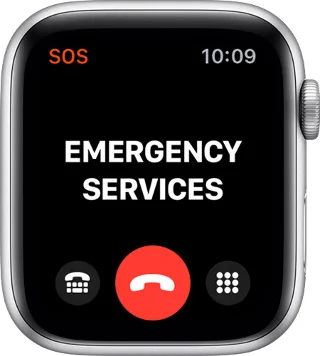
Now, you get to see that the Apple Watch helps in detecting the hard fall, which might call for urgent attention. This feature can be really helpful when it comes to the safety of senior citizens and in general, for the cases where help must be sent immediately.
There have been cases that required medical attention and were undetected as no one was informed on time. To help the people in any unavoidable falls and thereafter get into worse situations, the innovations are regularly upgrading.
Apple Watch SOS has introduced the fall detection feature, which will help the person in the case of a hard fall. This sends emergency messages, and it will inform the emergency contacts as well.
What Is Fall Detection On Apple Watch?
With Apple Watch Series 4 and 5, the fall detection feature was introduced to improve safety measures. The people who wear it are benefited with the various features on it along with accessing your phone. The health benefits are the ones which are mostly applauded by a lot of users. The new feature will detect the fall, and if motion is not visible it will send for emergency SOS.
It works when you are wearing an Apple Watch and happen to fall. This instantly taps on your wrist and if it sounds alarming, it will show an Alert. It starts a 30 seconds countdown when it detects you are immobile for over one minute. This begins tapping on the wrist and also an alarm that gets louder. It will help you get someone’s attention to get to you and get you the medical help needed. Once the timer ends, it will call emergency services. In case, you have been reached out for help from nearby, you can cancel the emergency call from the option on Apple Watch.
With the emergency call, a recorded message is played, and your live location is shared in latitudes and longitudes for exact coordinates. It will keep repeating itself until the call ends or the recording stops. For ease to respond to the message, the volume turns low after the first time to let, the voice of the person get through if you want to say something for help.
How To Turn On Fall Detection ?
Apple Watch fall detection works on the high impact fall, and it can be activated with the simple steps.
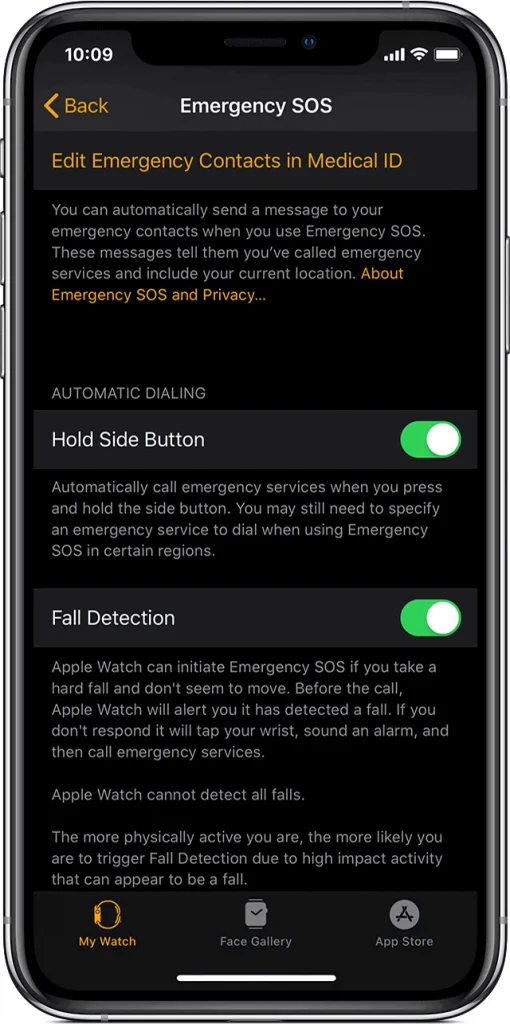
On iPhone, head to the Apple Watch app and within the Settings, open the My Watch tab for the settings on your Apple Watch connected to the device.
Now locate Emergency SOS and turn on the Fall Detection mode on it with the toggle button.

Important feature that should be appreciated is: If you are over 65 and had previously added your age while setting up Apple Watch, this feature is turned on automatically.
Also, wrist detection should be turned on for being able to contact Emergency services. Otherwise, it won’t be able to send the message that you have met with an accident, and Apple SOS will not help. To turn it on check this on the Settings in Apple Watch. Go to Passcode and turn on Wrist Detection.
How To Set Emergency Contact On iPhone?
Follow the steps to add a contact from your phone’s contact list to your emergency contact.
- Go to Settings app on your phone.
- Locate Health and Medical ID, and tap on edit.
3.Add the date of birth, other important information related to health.
4. Tap on add emergency contact, select one from your list and add your relationship with them.
Note: Turn on the Show When Locked as to enable the use of emergency contact when the phone is locked.
5.When finished with this tap on Done.
How To Turn Off Fall Detection In Apple Watch?
If you are involved in some physical activities such as workout, it is possible that your Apple Watch triggers it as fall. Due to which you will go through the process of alerts frequently. But, if you are not in grave danger, and the fall was detected by your Apple Watch, you can choose to stop the alert. This has been reported as an issue by a lot of Apple users. Therefore, let’s learn how to stop the alerts.
To turn off the alert, you need to press the digital crown. A notification will appear on the upper left corner; you need to tap on “I am OK”. The watch always waits for your response, and when you feel it’s something you can manage, you can turn off the emergency call.
Wrapping up:
This is how you can use the fall detection on Apple Watch for emergency situations. As it adheres to a mechanism that will help you in crisis. The Apple Watch SOS will be sent and the emergency services can be contacted. They will be able to reach you with location sharing.
Bitte teilen Sie uns Ihre Meinung zu dieser SOS-Sturzerkennungsfunktion der Apple Watch in den Kommentaren unten mit. Wir würden auch gerne Ihre Erfahrungen mit der Apple Watch wissen, wenn Sie eine verwenden. Abonnieren Sie auch unseren Newsletter, um regelmäßig über die Tech-Welt informiert zu werden. Folgen Sie uns auch auf Social Media – Facebook , Twitter , LinkedIn und YouTube .