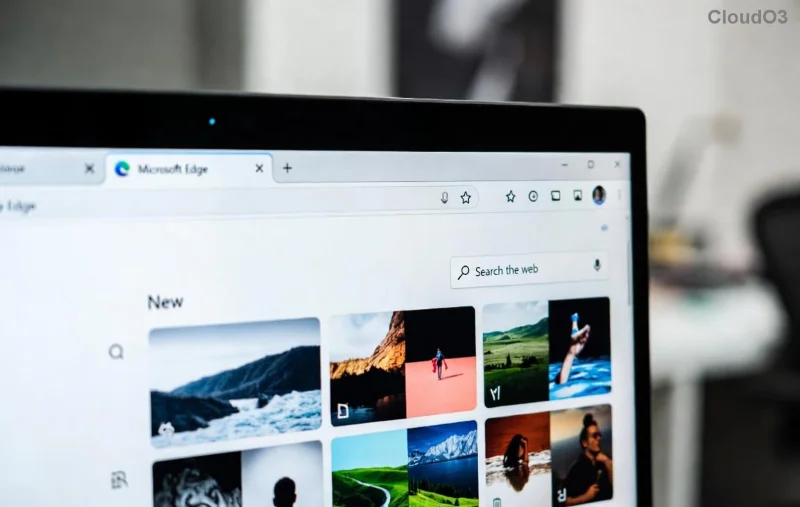
Imagine diving into lengthy PDFs while your hands are free for coffee or notes. That's the magic of the Microsoft Edge Read Aloud feature for PDFs! This built-in tool turns static documents into dynamic audio experiences, perfect for students, professionals, or anyone with visual fatigue. Whether you're commuting or multitasking, how to use Microsoft Edge Read Aloud for PDFs is simpler than you think. Let's jump right in and transform your reading routine. 👆
Why Choose Microsoft Edge Read Aloud for Your PDFs? ⭐
Microsoft Edge's Read Aloud isn't just a gimmick—it's a game-changer. Powered by advanced text-to-speech (TTS) voices, it handles complex PDFs with layouts, tables, and images seamlessly. Key perks include:
- Multitasking Mastery: Listen while walking, cooking, or exercising.
- Accessibility Boost: Ideal for dyslexia, low vision, or language learners.
- Customization Galore: Adjust speed, voice, and pitch for your perfect vibe.
- Free & Native: No extra apps needed—Edge does it all.
Ready to experience it? Follow these foolproof steps for how to use Microsoft Edge Read Aloud feature for PDFs. We'll keep it concise yet complete.
Step 1: Open Your PDF in Microsoft Edge 🗂️
First things first: Launch the latest Microsoft Edge browser. Edge shines as a top PDF viewer out-of-the-box.
- Click the three-dot menu (⋮) in the top-right corner.
- Select "Open file" or drag-and-drop your PDF directly into a new tab. ✨
- Your PDF loads instantly—no downloads or extensions required!

Pro Tip: For online PDFs, just click any link—Edge renders them flawlessly. Now, spot the toolbar at the top of your PDF. That's your gateway to audio bliss.
Step 2: Activate Read Aloud with One Click 🎤
Here's the heart of how to use Microsoft Edge Read Aloud for PDFs:
- Look for the Read Aloud button (🔊 icon) on the PDF toolbar. It's usually near "Fit to page" or "Print."
- Click it! Edge starts reading from the current page automatically. 😊
- Want to start from the beginning? Hit the rewind button (⏮️) in the floating Read Aloud controls.
![Activating Read Aloud feature in Microsoft Edge PDF viewer with voice controls]()
Voice selection pops up—choose natural-sounding options like "Aria" or download premium voices for free via Edge settings. Hearing it yet? You're halfway to productivity nirvana!
Customize Your Read Aloud Experience for Maximum Comfort 🔧
Don't settle for defaults. Tweak these settings mid-session via the Read Aloud panel:
| Option |
How to Adjust |
Benefit |
| Speed |
Slider (0.5x to 5x) |
Match your pace—slow for learning, fast for skimming. |
| Voice |
Dropdown menu |
Pick accents (US, UK, etc.) for engaging listens. |
| Pitch |
Up/down arrows |
Finer tone control for clarity. |
| Background Color |
Theme toggle |
Dark mode for night owls. |
Bonus: Use keyboard shortcuts for pros!
- Ctrl + Shift + U: Toggle Read Aloud.
- Ctrl + Shift + Y: Previous sentence.
- Ctrl + Shift + E: Next sentence.
These make
Microsoft Edge Read Aloud for PDFs lightning-fast.
Pro Tips to Supercharge Your Sessions 💡
Elevate from basic to boss-level usage:
- Immersive Reader Mode: For cleaner text, click the book icon (📖) before Read Aloud—strips distractions.
- Multiple PDFs: Pin tabs for side-by-side listening.
- Offline Magic: Downloaded voices work without internet.
- Sync Across Devices: Edge profile syncs settings on PC, mobile, or Mac.
Stuck? Common fixes:
- Update Edge: Settings > About Microsoft Edge.
- Enable TTS: edge://settings/accessibility.
- No sound? Check Windows sound settings or Microsoft Edge Support.
Real-World Wins: Who Loves It? 🎉
Students cram notes hands-free. Lawyers review contracts on the go. Authors proofread aloud for flow. One user shared: "Edge's Read Aloud for PDFs saved my commute!" Ready for your win?
Wrap-Up: Start Reading Aloud Today! 🚀
Mastering how to use Microsoft Edge Read Aloud feature for PDFs takes minutes but delivers hours of freedom. Fire up Edge, grab a PDF, and hit play. Your eyes will thank you. Got tweaks or stories? Drop them below—we're all ears! 🔊 What's your first PDF to try?