Have you ever fallen asleep only to wake up to the fact that you never turned off your Android TV? You think you’re not that tired and that you can finish the movie, but once again, that didn’t happen. If you’re tired of waking up to see your Android TV on, here is how you can turn off your Android TV on a timer by using a feature on your Android TV. If you have issues with the integrated feature, you can also use a third-party app. Here are the steps to follow.
How to Turn Off Your Android TV on a Timer
Even if you feel exhausted, putting your Motorola Android TV on a timer won’t take more than a few minutes. Grab your remote and press the Menu button. When the list of options appears, use the down arrow button to go to the Timer option.
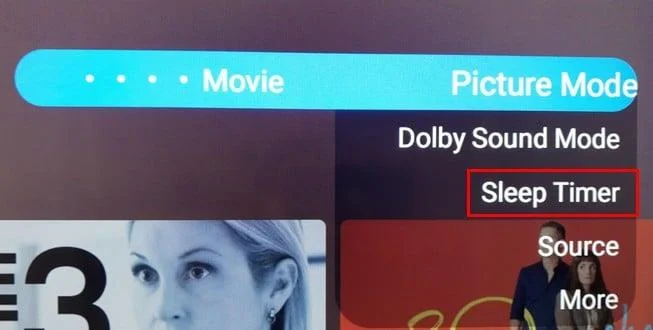
If this doesn’t work, you can also go to Settings and see a timer option.
Once the timer option is highlighted, use the right and left arrows to choose when your Android TV will turn off. You can select from times such as:
- Off
- 15 minutes
- 30 minutes
- 60 minutes
- 90 minutes
- 120 minutes
When you choose a time, press OK and leave the list of options. Your Android TV might or might not show you a confirmation message, but it should still record your time choice if it doesn’t. By using this option, the TV will turn off without showing a message that there is only a specific amount of time left.
How to Set a Sleep Timer for Your Android TV Using Sleep TV Timer
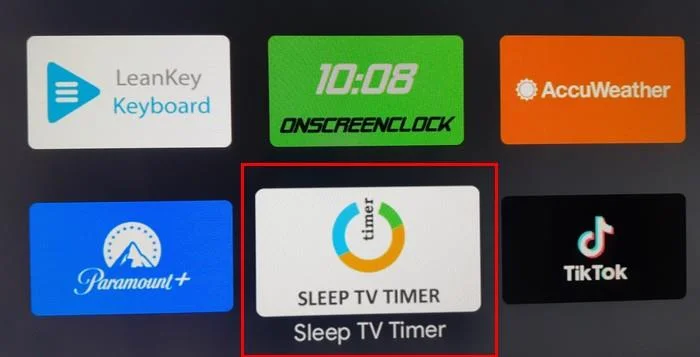
If you’ve looked in your Android TV’s settings and can’t find a timer option, you can install a Sleep TV Timer app. It’s free to download but also has a Pro version if you’re willing to pay. To install it, open Google Play on your Android TV and type or, say, Sleep TV Timer.

You’ll need to give the app some permissions and follow the on-screen instructions to turn them on. There will only be two permission to give the OK to continue.
On the app’s main page, you’ll see different sleep times to choose from. For example, you can choose from:
- 15 minutes
- 60 minutes
- 180 minutes
- 30 minutes
- 90 minutes
- 45 minutes
- 120 minutes
Another option you’ll see is Set time. With this option, you can choose a time that better fits your needs. Use the arrow keys to select the keyboard icon and set the hour, followed by the minutes. Once you’ve chosen the time, select OK, and your sleep time will be displayed as a countdown clock at the top right. You’ll also see a Stop button if you change your mind and want to stop the countdown. When there are 5 minutes left before your Android TV turn off, the app will show you a message letting you know.
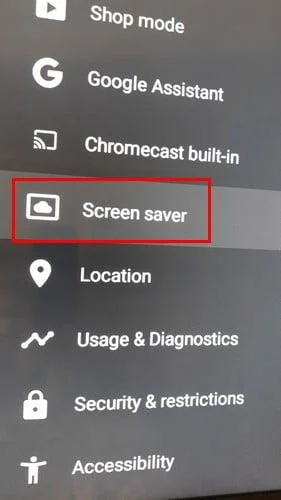
Remember that if you try the app and it doesn’t turn off, it’ll show you a message that it’s because you have the screen saver on. You must turn the screen saver off on your Android TV for the app to work correctly. To turn off the screen saver, go to Settings > Device Preferences > Screen saver and select the screen saver option again.

It’ll be the first one on the list. Select the Turn screen off option.
Return to the Sleep Timer app and set a time to turn off your Android TV. It might say the time to turn your TV off is about 10 minutes, but it wasn’t more than a few minutes during testing. That’s all there is to it when putting your Android TV to sleep on a timer.
Further Reading
Speaking of setting timers, here is how to set a timer in Apple Music for Android. It’s also possible to set a timer on your Windows 10 computer if you need to do that. Do you need to take some time off from some of your Android apps? Here is how you can set a limit for them to take a break from the apps.
Conclusion
Leaving the TV on all night but not seem like a big deal until you get the light bill. Setting a timer is the best way to go if you want to avoid waking up to a TV that’s been on all night. You can use the timer option on your Android TV, but if you’re having issues with that, you can also use a third-party app. Do you leave your Android TV on all night often? Share your thoughts in the comments below, and remember to share the article with others on social media.