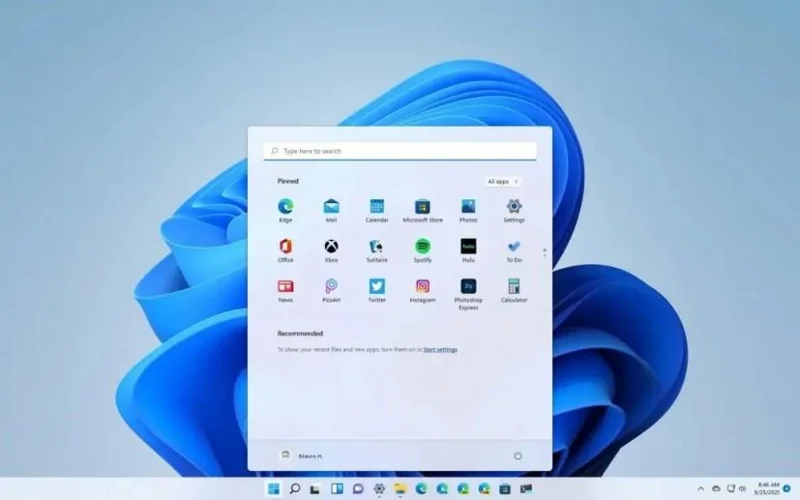
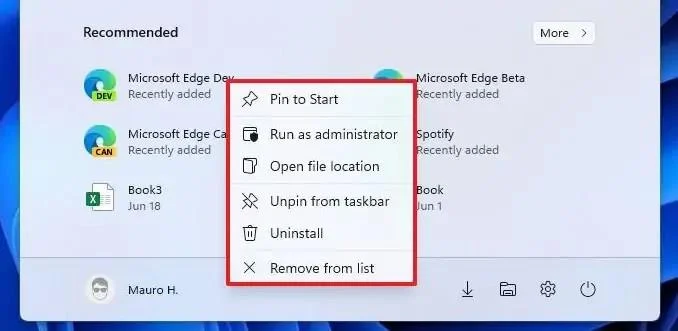
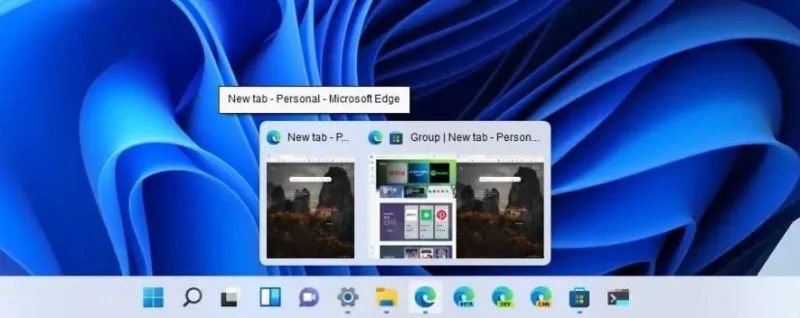
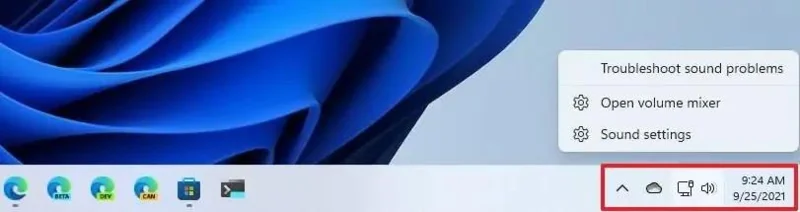
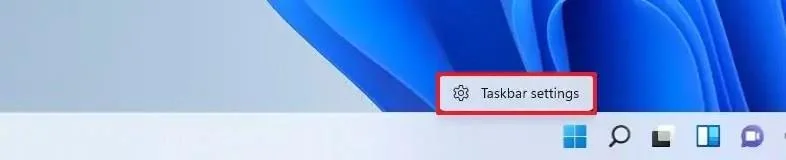
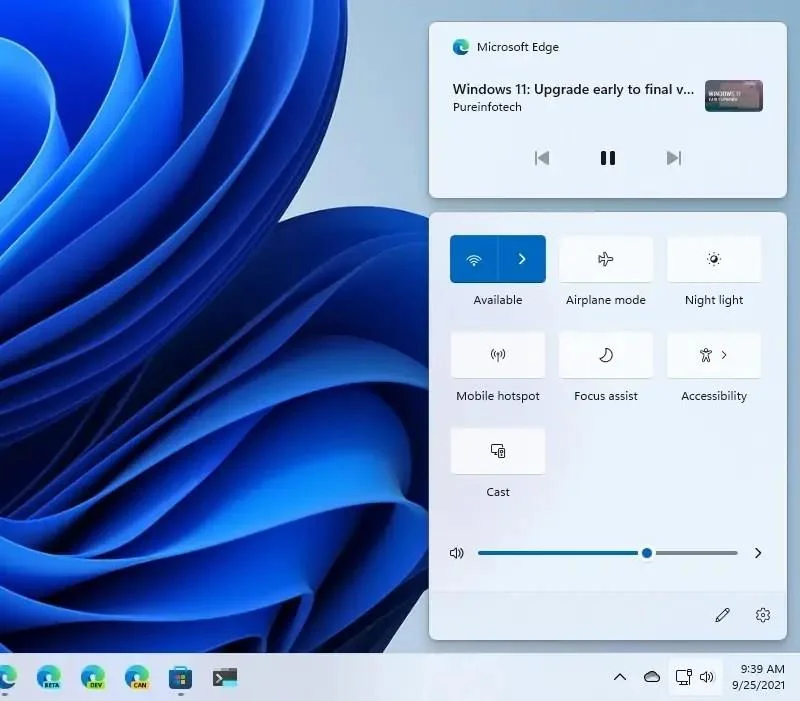
Windows 11 มาพร้อมกับเมนู Start ที่ออกแบบใหม่ซึ่งแยก Live Tiles ไปเป็นไอคอนแบบดั้งเดิมและการออกแบบที่เรียบง่ายใหม่ เมนูนี้อิงตามการออกแบบของบริษัทสำหรับ Windows 10X โดยลอยอยู่เหนือแถบงาน และเป็นไปตามการออกแบบสไตล์ระบบปฏิบัติการใหม่ที่มีมุมโค้งมนและวัสดุกึ่งโปร่งใส
เมนูเริ่มของ Windows 11
เมนูแบ่งออกเป็นสี่ส่วน ด้านบนประกอบด้วยช่องค้นหาที่เปลี่ยนไปใช้ประสบการณ์การค้นหาของ Windows ทันทีที่คลิก ซึ่งคล้ายกับช่องค้นหาในWindows 10แต่มีการปรับแต่งเล็กน้อย
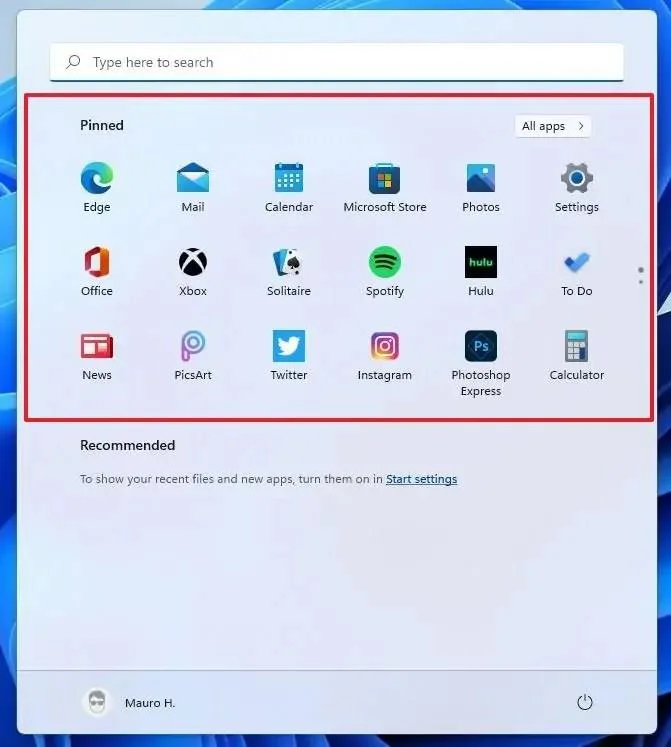
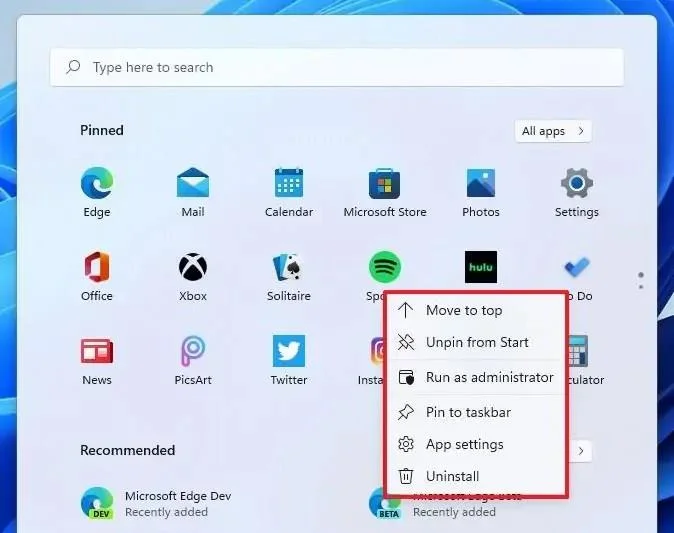
ส่วนปักหมุดประกอบด้วยแอปโปรดทั้งหมดของคุณ และมีหน้าหลายหน้าเมื่อคุณเพิ่มแอปเพิ่มเติม ที่มุมบนขวา คุณจะพบปุ่มสำหรับเข้าถึงรายการ "แอปทั้งหมด" ที่ทำงานเหมือนกับรายการใน Windows 10
นอกจากนี้ ในรายการ "แอปทั้งหมด" โฟลเดอร์ "Windows Administrative Tools" ถูกแทนที่ด้วยตัวเลือก "Windows Tools" ที่เปิดหน้าเครื่องมือ Windows ในแผงควบคุม หน้านี้รวมตัวเลือกทั้งหมดที่มีใน Windows Administrative Tools, Windows Accessories, Windows PowerShell และโฟลเดอร์ Windows System
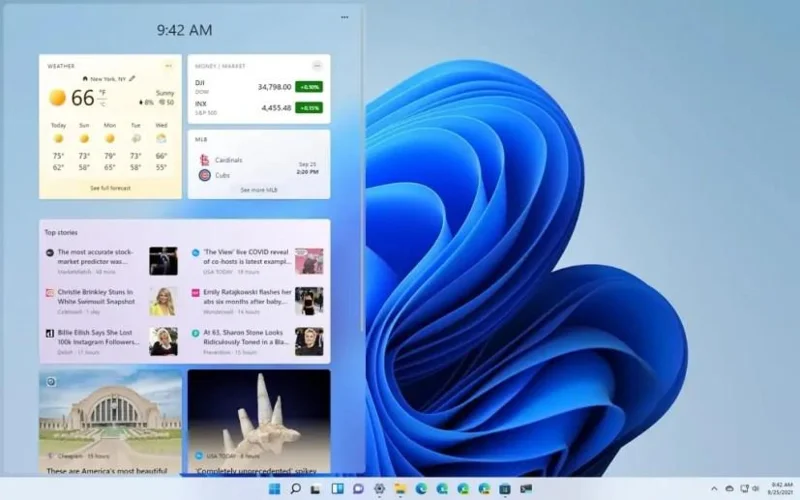
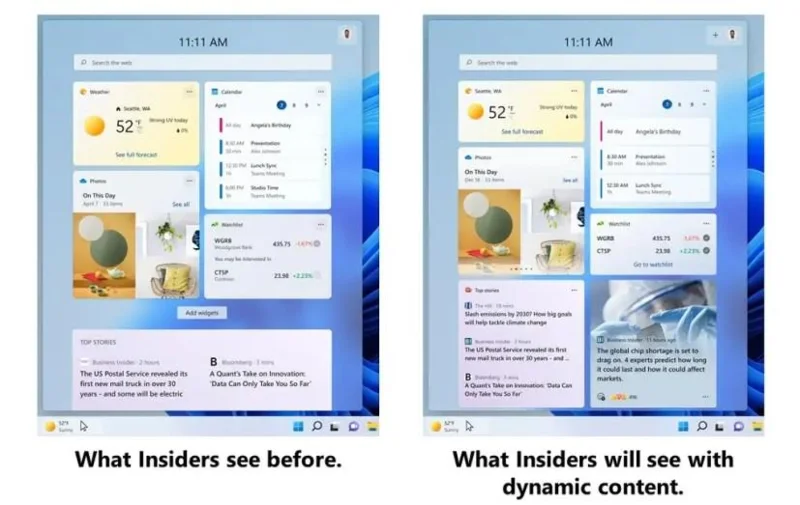
คุณสามารถเปิดวิดเจ็ตด้วยปุ่มเฉพาะในแถบงานหรือใช้แป้นพิมพ์ลัด ของ Windows + W บนอุปกรณ์ที่เปิดใช้งานระบบสัมผัส คุณสามารถปัดจากขอบด้านซ้ายเพื่อเปิดประสบการณ์
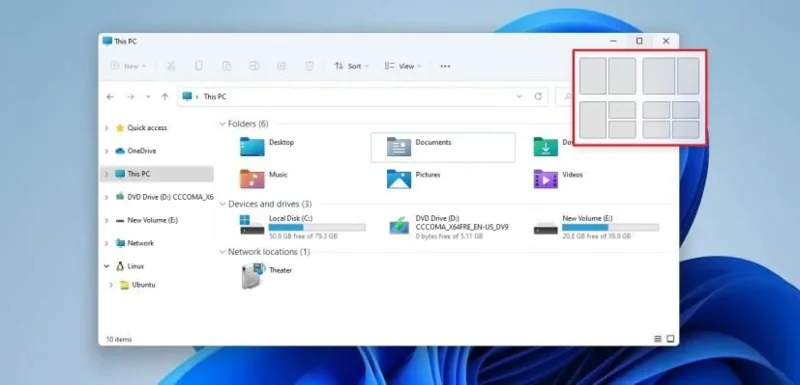
“การจัดวางแบบสแนป”เป็นคุณสมบัติที่เมื่อวางเมาส์เหนือปุ่มขยายใหญ่สุดใน File Explorer หรือแอปอื่นๆ จะช่วยให้คุณเห็นภาพในการสแนปหน้าต่างบนหน้าจอโดยใช้กริดที่แตกต่างกันอย่างรวดเร็ว
เค้าโครง Windows 11 Snap
บนหน้าจอขนาดเล็ก คุณจะเห็นชุดเค้าโครงสแน็ปสี่แบบหรือหกเค้าโครงบนหน้าจอขนาดใหญ่ คุณยังสามารถเปิดเมนูลอยเลย์เอาต์ของสแน็ปช็อตได้ด้วยปุ่มลัดWindows + Z
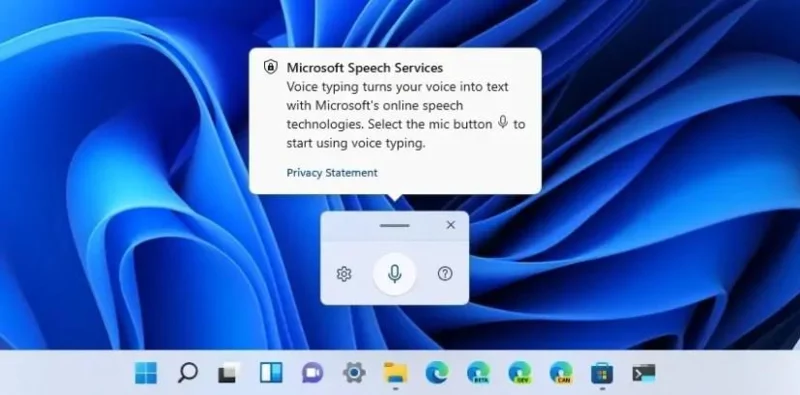
Windows 11 ยังมี แอพ Voice Typing ใหม่ ที่จะช่วยให้คุณพิมพ์ด้วยเสียงของคุณ โดยค่าเริ่มต้นจะปิดอยู่ แต่คุณสามารถเปิดได้จากการตั้งค่าการพิมพ์ด้วยเสียงหรือด้วยแป้นพิมพ์ลัด ของ Windows + H
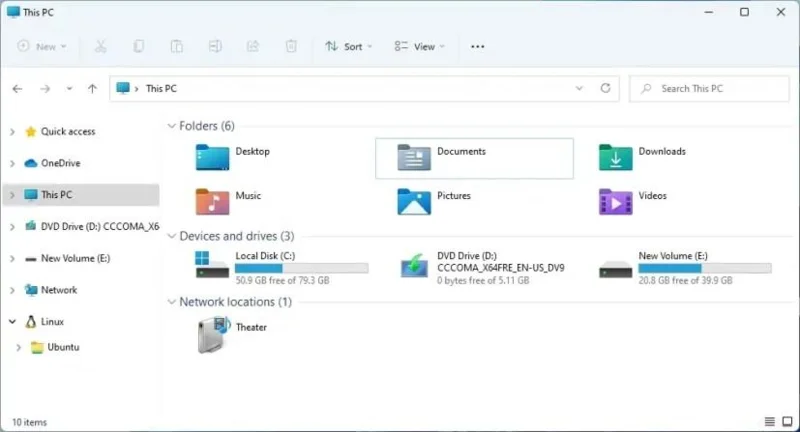
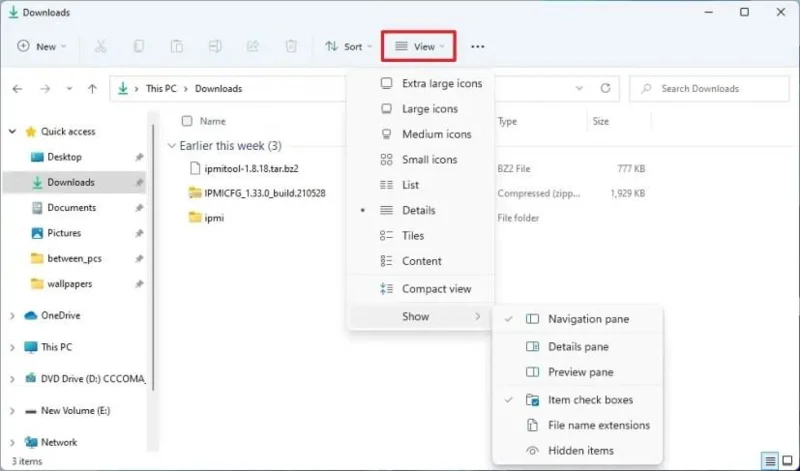
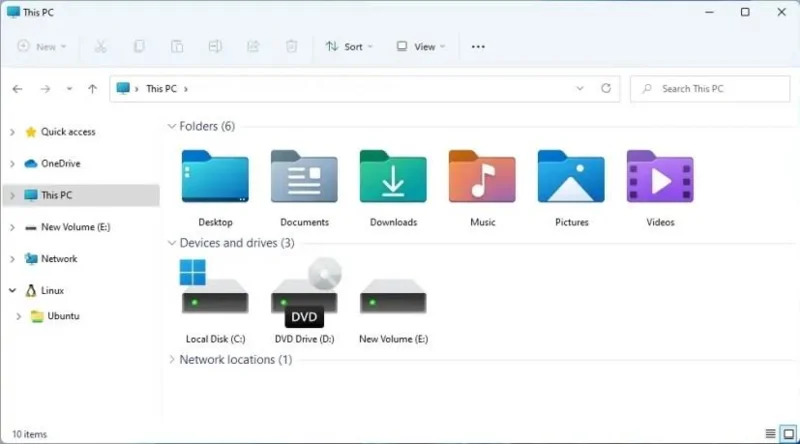
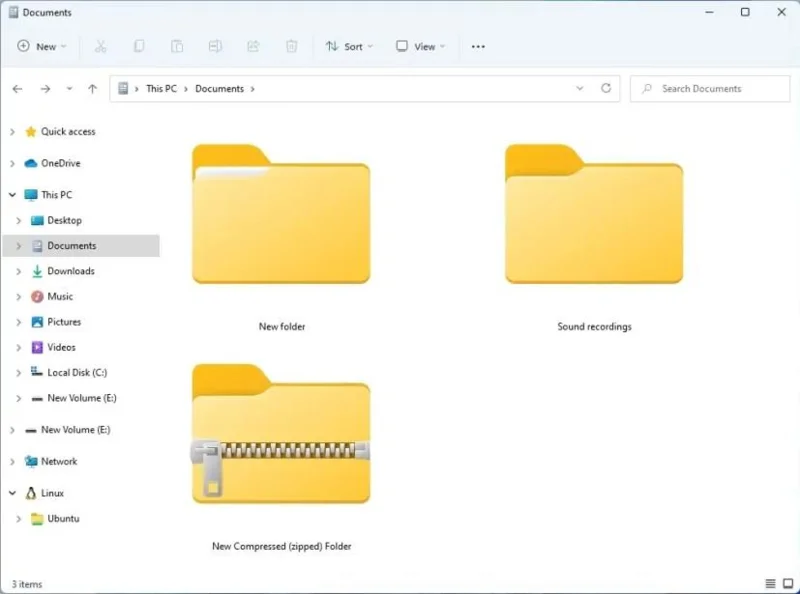
Windows เวอร์ชันใหม่นี้มาพร้อมกับประสบการณ์ File Explorer ที่อัปเดต อย่างไรก็ตาม ไม่ใช่แอปพลิเคชันใหม่ทั้งหมด แต่นี่เป็นแอปเดียวกัน แต่มีอินเทอร์เฟซที่อัปเดตแล้ว
Windows 11 File Explorer
การออกแบบเสร็จสิ้นโดยใช้ Windows UI Library (WinUI) ที่มีองค์ประกอบภาพ แอนิเมชั่น และการควบคุมแบบใหม่ที่ตรงกับสไตล์ที่ Microsoft ผลักดันใน Windows 11
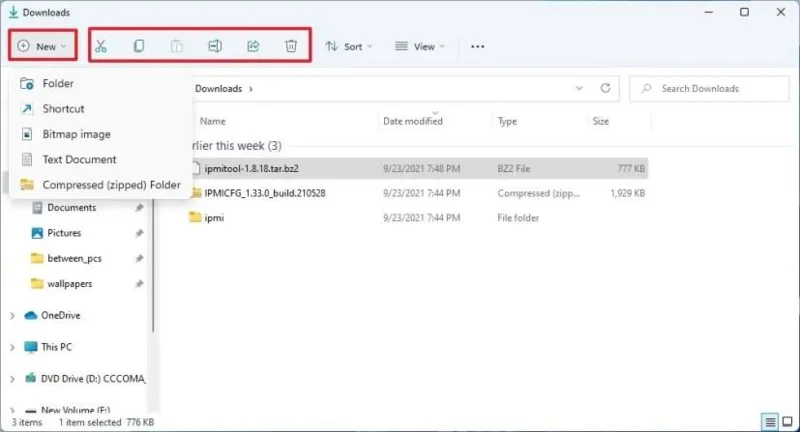
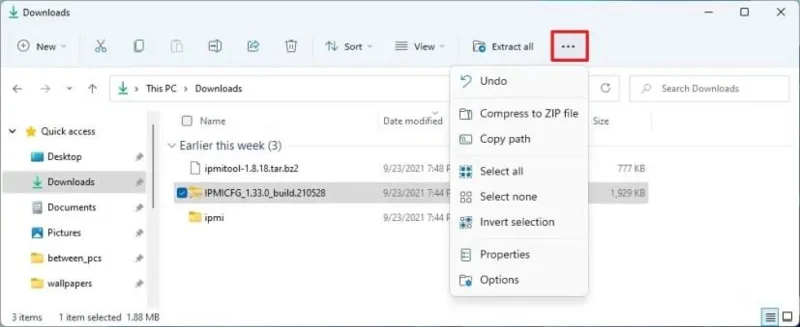
แถบคำสั่ง
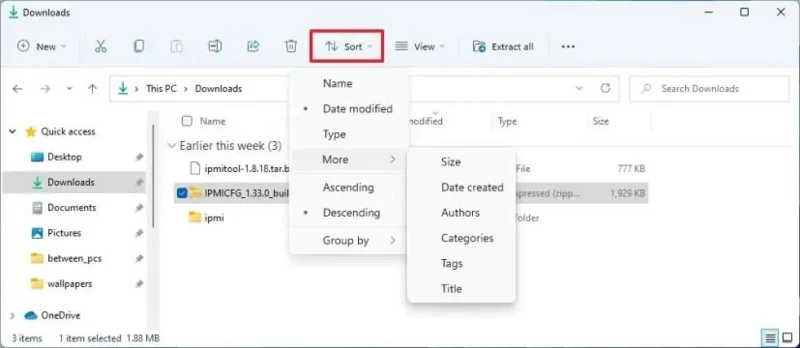
File Explorer ใหม่เลิกใช้เมนูสไตล์ริบบอนแทนส่วนหัวแบบมินิมอลลิสต์ใหม่ที่รวมแถบชื่อเรื่องและเมนูเข้าในอินเทอร์เฟซแบบรวมที่มีแถบคำสั่งใหม่
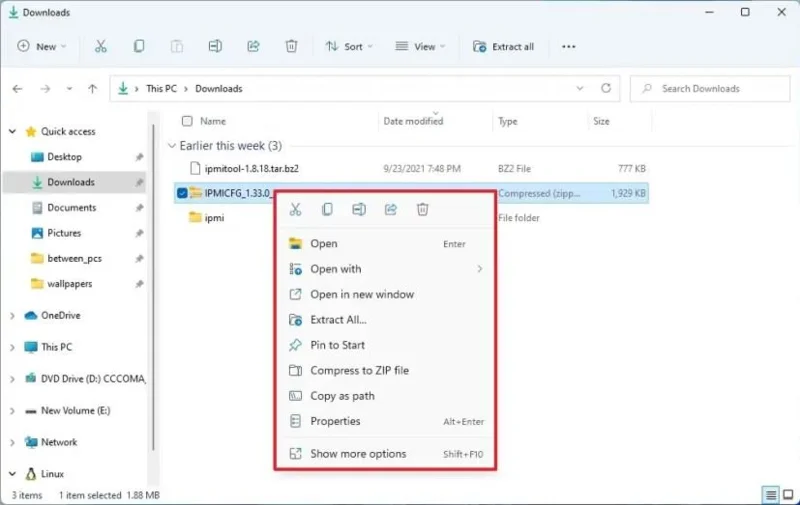
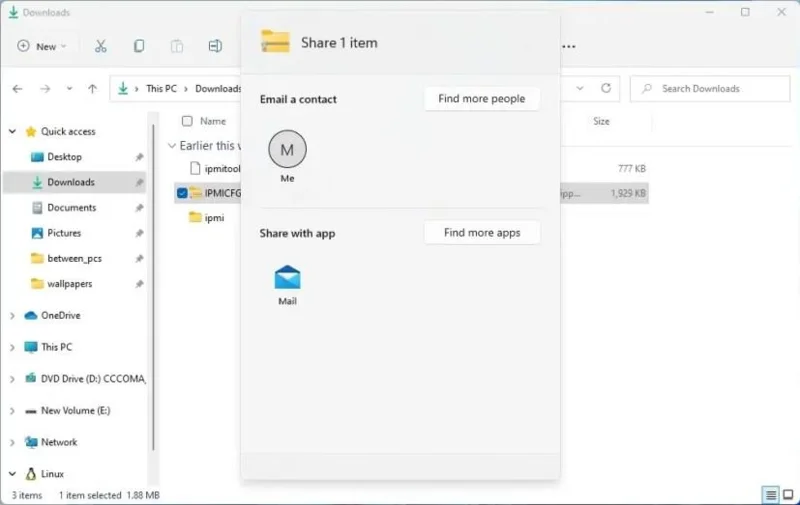
File Explorer สำหรับ Windows 11 ยังแนะนำรูปแบบเมนูบริบทใหม่ คุณจะเห็นเมนูนี้เมื่อคลิกขวาที่ไฟล์หรือโฟลเดอร์ เมนูบริบทประกอบด้วยแถวที่มีคำสั่งทั่วไป เช่น ตัด คัดลอก เปลี่ยนชื่อ แชร์ และลบ และด้านล่าง คุณจะพบตัวเลือกต่างๆ ที่คุณสามารถใช้กับไฟล์นั้นๆ
เมนูบริบท File Explorer
เช่นเดียวกับองค์ประกอบอื่นๆ ใน Windows 11 เมนูบริบทจะเป็นไปตามภาษาการออกแบบใหม่ด้วยวัสดุกึ่งโปร่งใสและมุมโค้งมน เมนูดั้งเดิมยังคงใช้งานได้ หากคุณต้องการตัวเลือกเก่าบางตัวที่ไม่มีในเมนูใหม่ คุณสามารถเข้าถึงมุมมองดั้งเดิมได้โดยคลิกที่แสดงตัวเลือกเพิ่มเติมหรือใช้แป้นพิมพ์ลัดShift + F10
เมนูบริบทใหม่ยังมีให้ใช้งานใน Windows 11 รวมถึงเมนูบริบทเดสก์ท็อป
แถบเลื่อน
File Explorer มีแถบเลื่อนใหม่ที่ทำงานเหมือนเดิม แต่มีการออกแบบที่บางกว่า ในบานหน้าต่างด้านซ้าย คุณจะพบตัวเลือกLinux ใหม่ รายการนี้ได้รับการออกแบบมาเพื่อให้คุณสามารถเข้าถึงไฟล์ Linux ภายใน distros ที่ติดตั้งกับระบบย่อย Windows สำหรับ Linux ได้อย่างรวดเร็ว
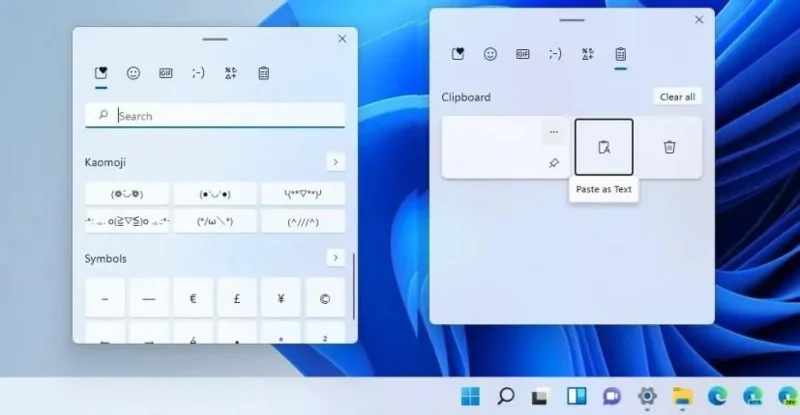
เนื่องจากเครื่องมือเลือกอีโมจิกำลังผสานรวมอินเทอร์เฟซประวัติคลิปบอร์ด คุณจึงสามารถแทรกอิโมจิและคัดลอกจากประสบการณ์เดียวโดยใช้ “คีย์ Windows + ” หรือ “ปุ่ม Windows +;” หรือแป้นพิมพ์ลัด “คีย์ Windows + V”
Although this is one of the biggest features on Windows 11, it’s only supported on specific hardware, which means that you will need a monitor that supports HDR. You can use this guide to learn the steps to enable the feature.
DirectStorage is a new technology that allows games assets to load faster to the graphics card without bugging down the processor. In other words, this means faster load times and more detailed game worlds. (This feature will require the latest NVMe drives and optimization by the game developers.)
Also, Windows 11 now supports DirectX 12 Ultimate. DirectX 12 is the technology standard for creating and managing gaming, images, and multimedia (such as visual effects and audio effects) that run on Windows-based devices.
New Windows 11 Settings app
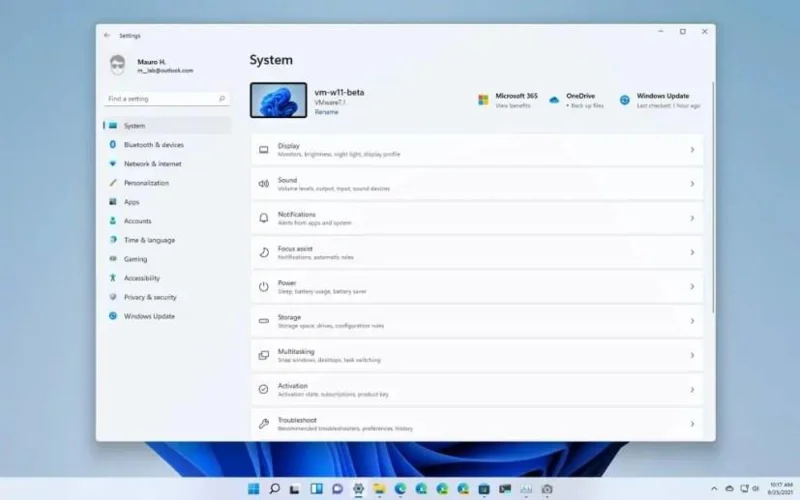
In addition to the new features and changes, Windows 11 also includes a new version of the Settings app. The new experience to customize the look and feel and configure system settings features a new redesigned interface, regroups and integrates new settings, ports more features from Control Panel, removes the homepage, and a lot more.
Windows 11 Settings app
As part of the new experience, the app includes rounded corners, a semi-transparent interface, and modern and colorful icons.
The navigation system is similar to the one available on Windows 10, but now there are more options, and the settings are grouped using different logic.
When you open Settings, you will notice that you are taken directly to the “System” section, and that’s because this version ditches the homepage.
Also, when you open a new section, the pages will be listed on the right side instead of the left.
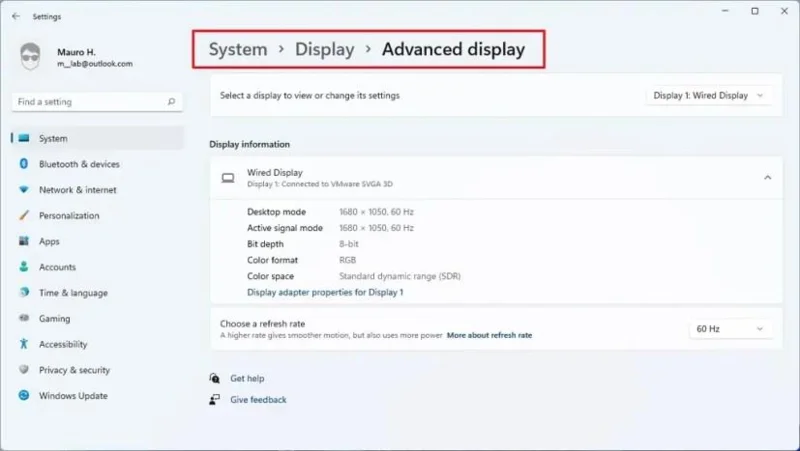
As you drill down through the pages, at the top, you will find the new breadcrumbs that will indicate your current location in the app. You can click each breadcrumb to jump back to a previous page. The setting pages can also show hero controls for frequently used settings or a specific feature.
Settings breadcrumbs
Finally, the new Settings app can now recommend settings adjustments based on their current state.
System settings
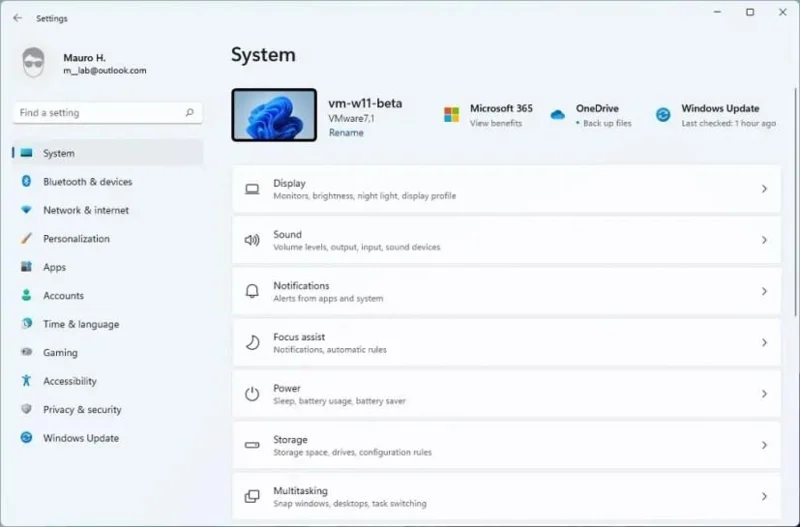
The System section is the new default page when you open the Settings app. It now includes the pages to adjust many settings, including Display, Sound, Notifications, Focus assist, Power, Storage, Nearby sharing, as well as Multitasking, Activation, Troubleshoot, Recovery, Projecting to this PC, Remote Desktop, Clipboard, and About.
System section
Also, the hero controls in this section include desktop preview, device name, and option to rename the system, and you will find icons with the status of OneDrive and Windows Update.
Display
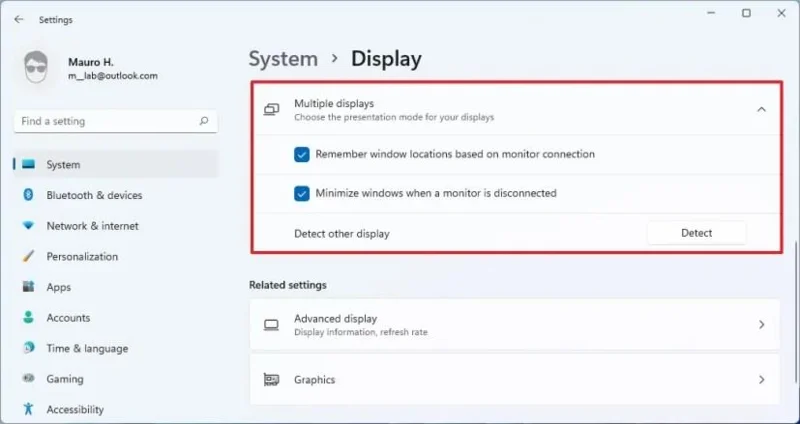
On the “Display” page, the Scale & layout section introduces new settings to remember window locations based on monitor connection and window locations based on monitor connection to improve the experience when working with more than one monitor.
Multiple displays
These settings are part of a new experience on Windows 11 that allows you to restore apps automatically to their original location when reconnecting an external monitor.
You will notice a new “Automatically adjust contrast based on the display content to help improve battery” option, under the Brightness setting, to disable content adaptive brightness control (CABC) on Windows 11.
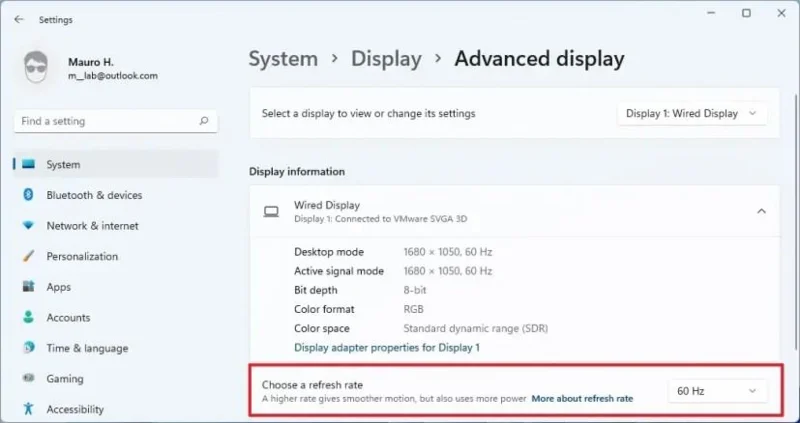
In the “Advanced display” page, there is a new option (Dynamic) to enable the new Dynamic Refresh Rate (DRR) feature in the refresh rate setting.
Dynamic refresh rate
If you choose this option, Windows will automatically lower or increase the display refresh rate to reduce the power consumption on supported hardware.
Also, if the display is certified as HDR, you will know this information on this page.
On the “Graphics” page, there is a new search box and list of apps you may want to customize.
Also, the Night light page is not getting new settings, but when turning the night light on or off manually through the Settings app or Action Center, the feature will now turn off immediately rather than using slow transition.
Sound
On the Sound page, you will find an option to enable mono audio for people with difficulty hearing, and there is an option to pair output devices quickly.
Mono audio
Under the “Advanced” section, you will find a new option to access all the sound devices, troubleshoot, and others.
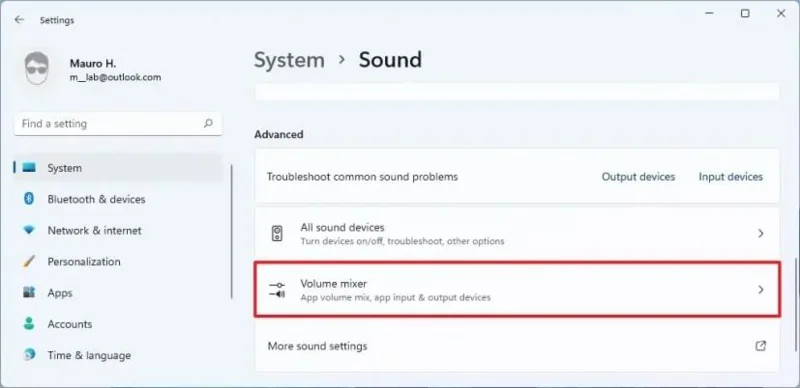
The “App volume and devices preferences” page has become the “Volume mixer.” The page still has all the same settings, and it replaces the legacy Taskbar volume mixer menu.
Windows 11 Volume mixer
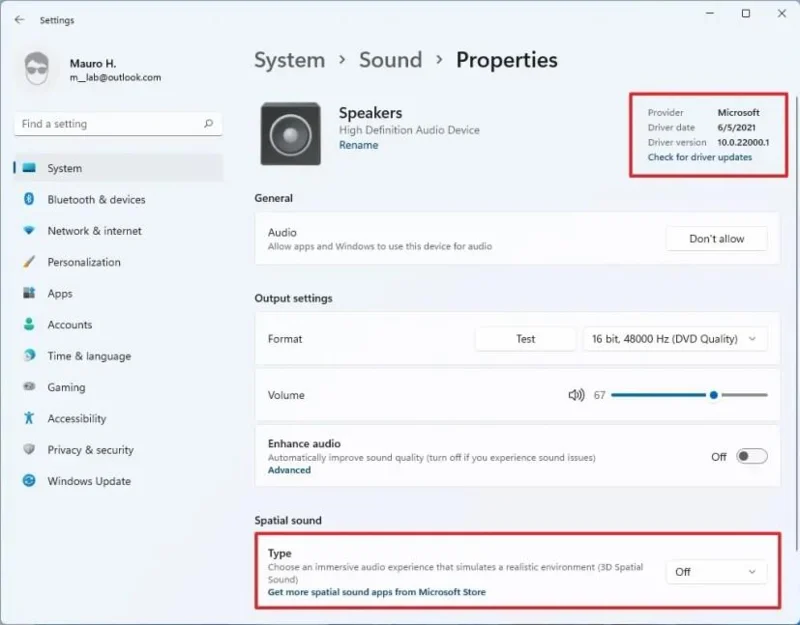
The Properties page for devices has been redesigned with high-quality icons, driver information, and new settings.
Sound properties
The Speakers page now houses permissions to allow or deny apps access to the output device. You can choose the audio format, adjust the volume, and enable Spatial sound. Also, you can now rename the device, see the driver information, and check for driver updates.
Notifications
On the Notifications page, you only have three settings, and there’s an option to access the “Focus assist” settings page.
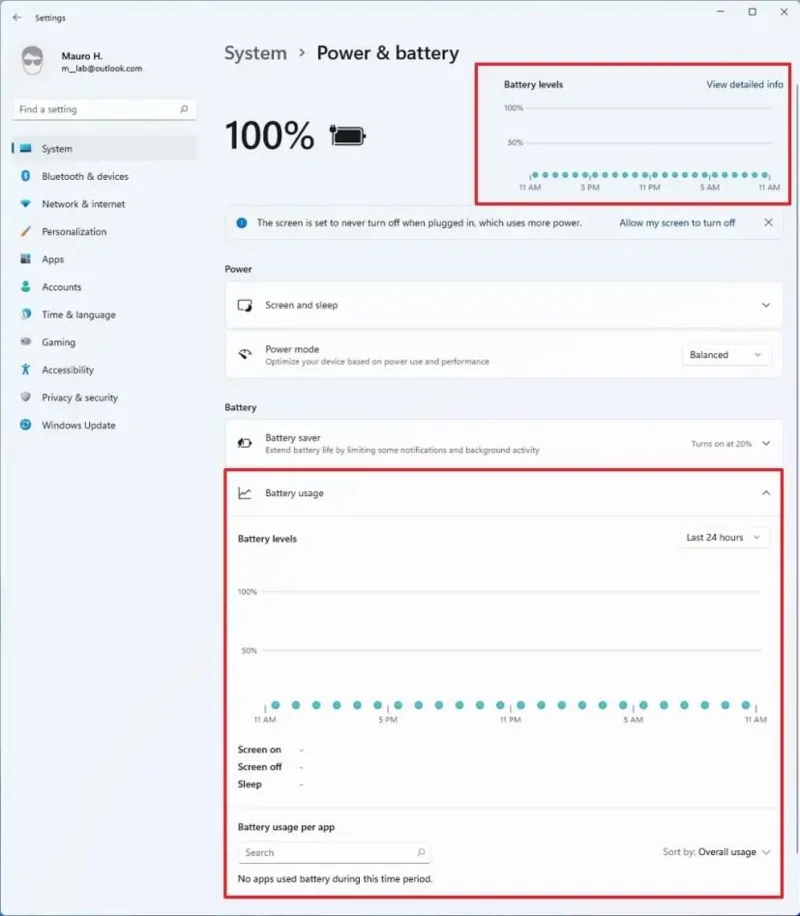
Power & battery settings
The Power & battery page now displays the battery usage over time.
Power & battery settings
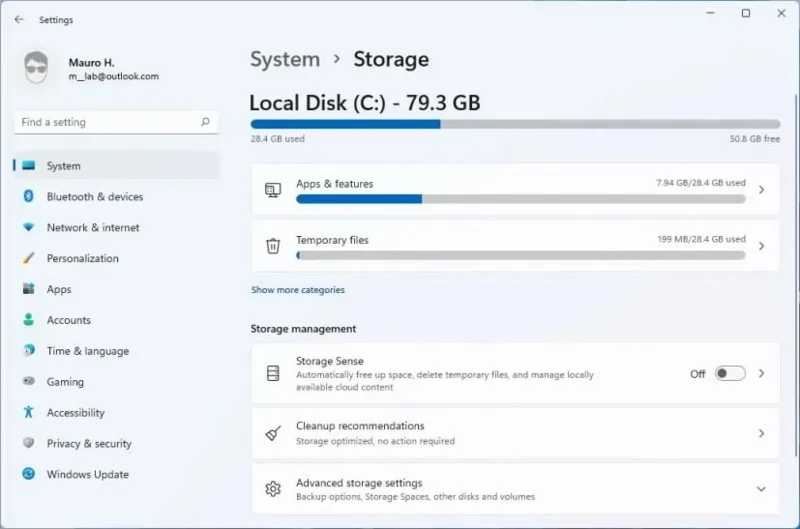
Storage
The Storage page has been updated with new features, and the information about the system drive is now front and center.
Windows 11 Storage settings
Storage sense is now located under the “Storage management” section. The only change on the Storage sense page is the new option to run the cleanup of temporary files automatically.
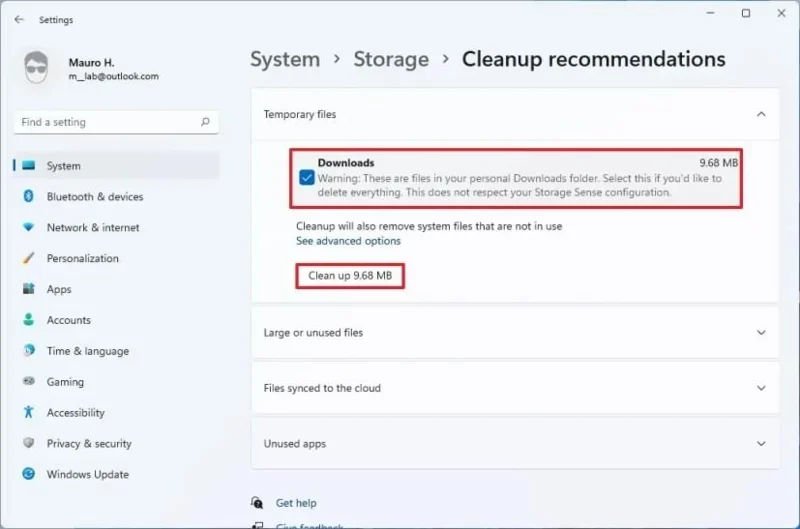
The Windows 11 Storage sense has a new feature known as Cleanup recommendations that shows how many large files and used files, synced files to the cloud, unused apps you can uninstall, and the temporary files you can delete to free up space.
Cleanup recommendations
The feature is straightforward. You only need to select the items and click the “Clean up” button to free up additional space.
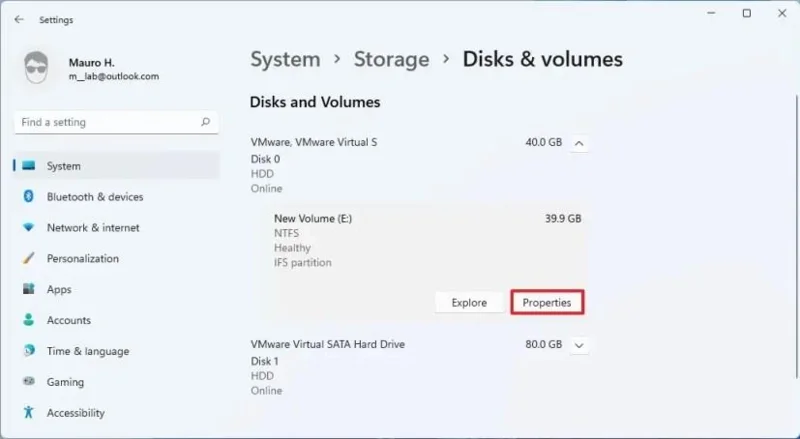
In the “Advanced storage settings” section on the main Storage page, you will find the new Disks & Volumes feature that replaces the legacy Disk Management experience.
Disks and volumes
Windows already has a tool to manage disks and volumes, but it’s an old control panel experience. The new experience was built from the ground up with modern improvements and accessibility in mind. It also features better integration with features, such as Storage Spaces and the Storage breakdown page.
Like the legacy tool (which is still available), the new tool allows you to view all the drives connected to the device, and you can create, resize, format, and change letters for partitions.
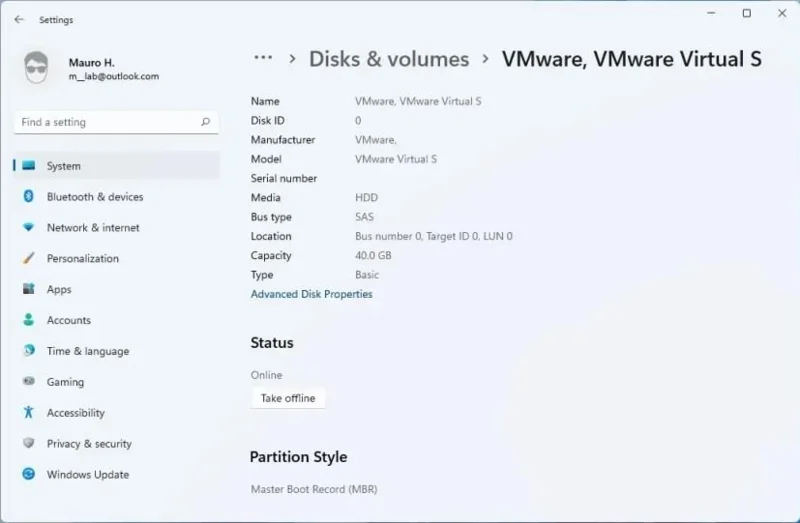
On the page, the disk tool shows all the drives connected to the device with basic information, such as the disk number, media (SSD or HDD), and whether if the drive is online or offline.
You can select the drive and click the Properties button to give you additional information like name, identification, model, media, capacity, and type. You’ll also see the current status and the partition style (for example, GUID Partition Table “GPT”).
Hard drive information in Settings
The Advanced Disk Properties option opens the properties of the drive with the Control Panel.
While on the main page, if you expand the drive, you will see the list of partitions with rich details, including the file system, partition type, status, and more.
Settings partition info and tools
In addition, the experience includes a health monitor feature to keep tabs on the health of Non-Volatile Memory Express (NVMe) Solid-State Drives (SSDs).
If there is an issue with the drive, you will see a notification to view more details and access the drive to back up the data before it’s too late. The notification will open the drive page, where you can find more information, including the life remaining on the drive, temperature, and available space.
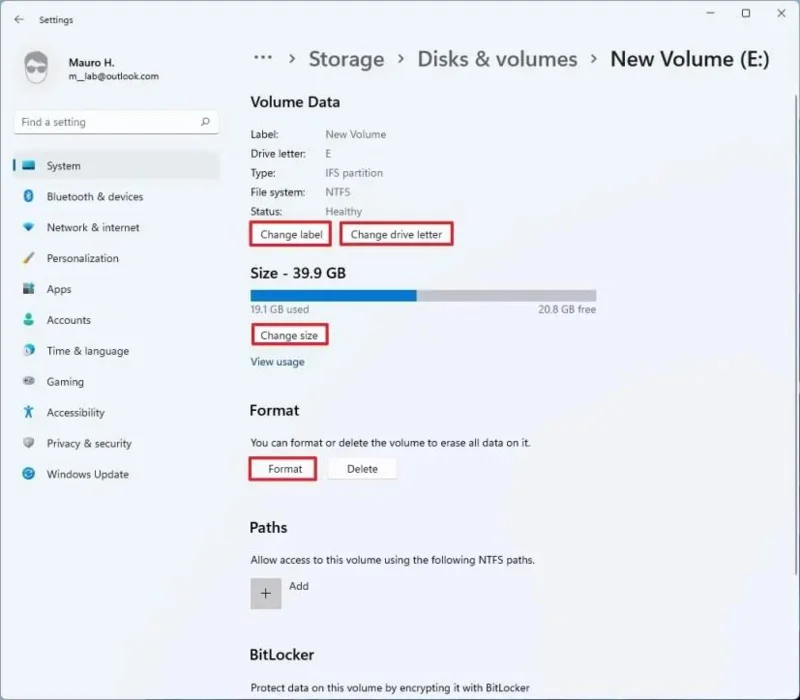
You can select each drive, and clicking the Properties button will access another page where you can change the label or drive letter. You can resize the partition with the Change size button. You can add a path to the volume, and you can even enable BitLocker on the drive.
If you are dealing with an external drive, the properties page will also include options to delete and format the partition, and you can bring the drive online or offline.
Windows 11 is also bringing Storage Spaces to the Settings app. This means you can now create and manage storage pools and spaces, add and remove drives, and optimize pools within the Settings app without opening Control Panel or PowerShell.
Multitasking
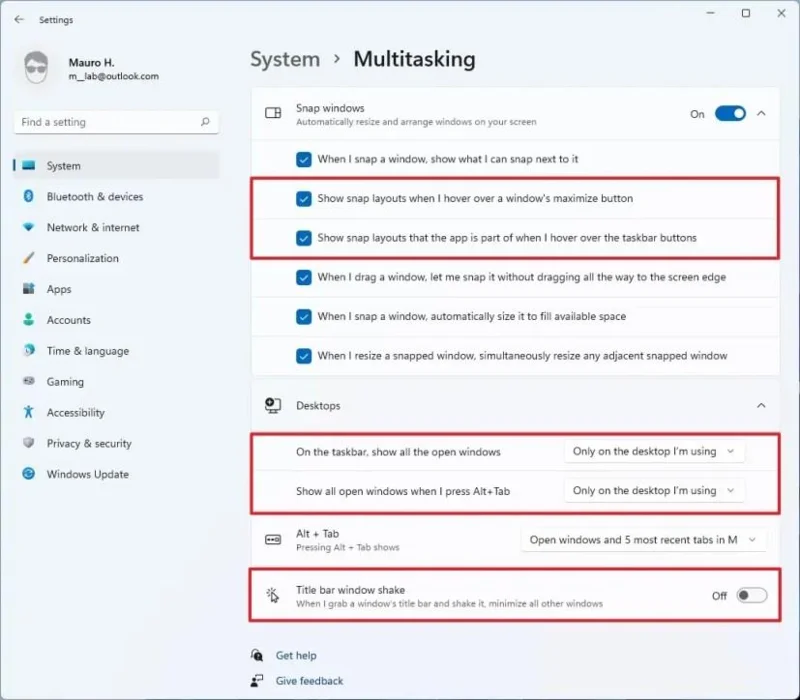
On Windows 11, the Multitasking page includes the options to enable and disable Snap layouts, Snap groups, and more.
Multitasking settings
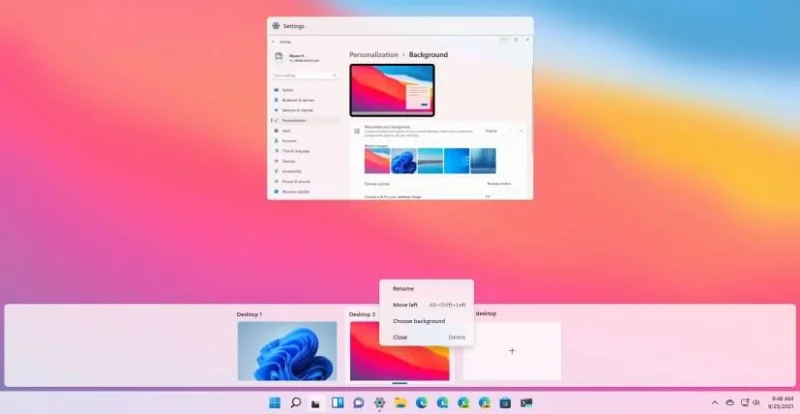
Also, the “Virtual Desktops” settings have been renamed to “Desktops,” and the settings are all the same ones as before. And now, the Settings app includes an option to enable or disable the title bar window shake (Aero shake) feature.
Bluetooth & devices settings
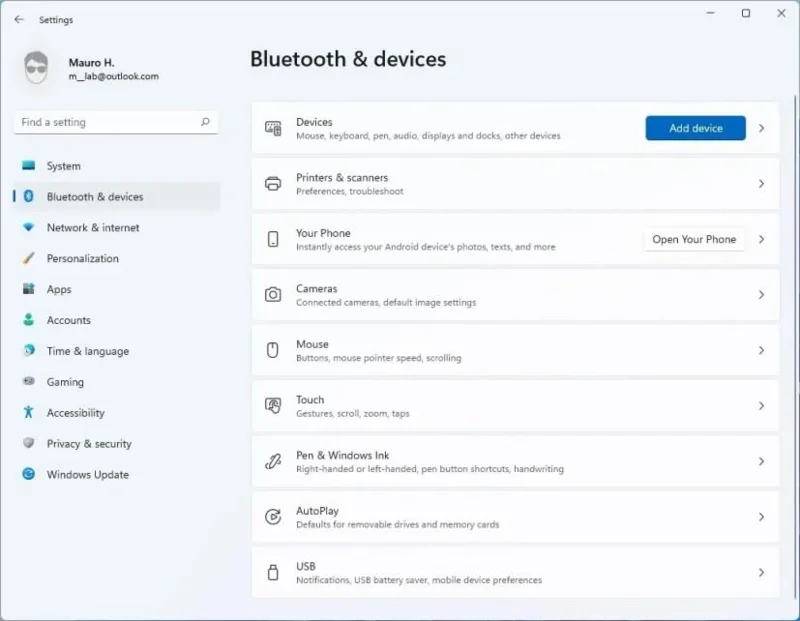
The Bluetooth & devices section has also been updated to make it easier to connect peripherals to Windows 11. This section includes the settings to control Bluetooth, Devices, Printers & scanners, Your Phone, Cameras, Mouse, Touch, Pen & Windows Ink, AutoPlay, and USB.
Bluetooth & devices settings
Devices
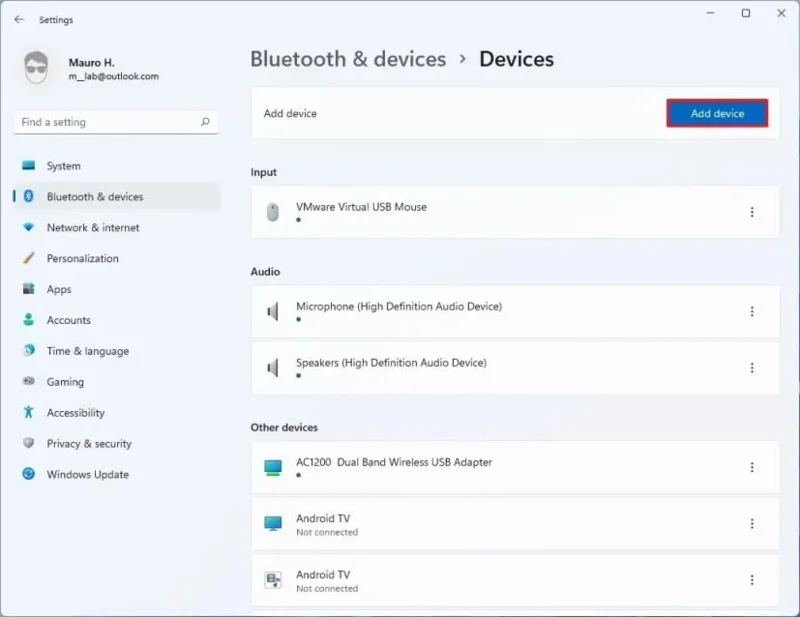
On the Devices page, you will see a list of the input, output, and other devices connected to your computer. And the Add device will open the wizard to install new peripherals like on Windows 10. If you no longer need a device, you can remove using the peripheral’s menu on the right side.
Windows 11 Devices settings
This used to be the “Bluetooth & other devices” page.
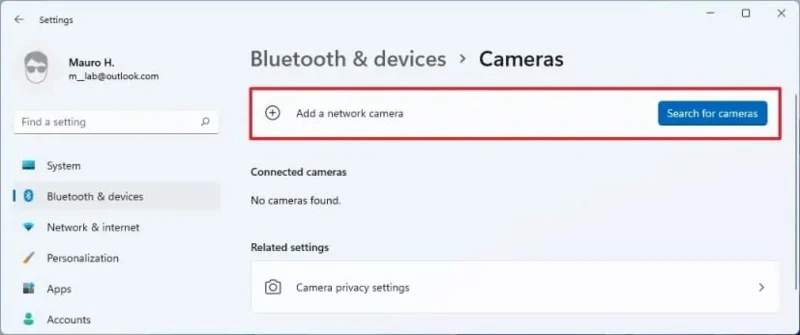
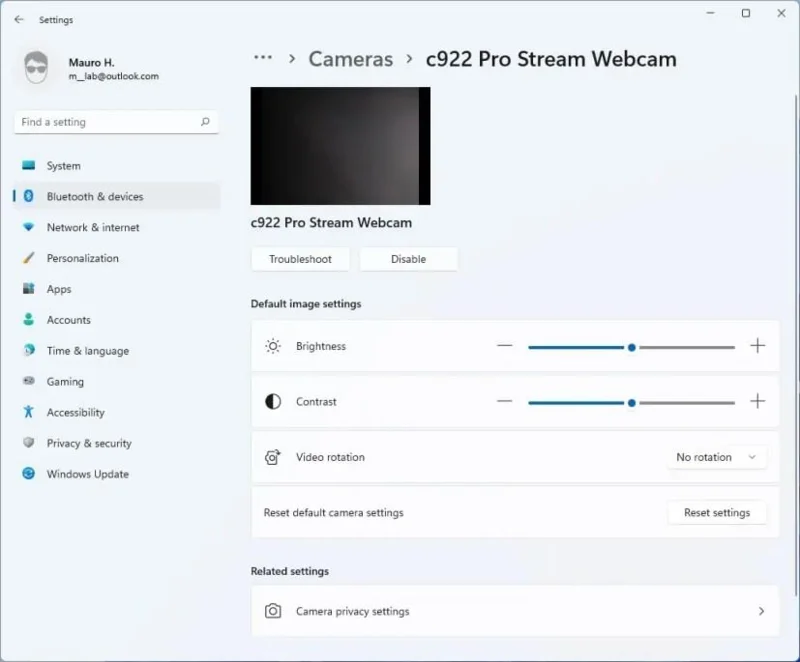
You can manage features like brightness, contrast, rotation settings, and even enable or disable Video HDR and Eye Contact in the camera settings. The Video HDR and Eye Contact features are only available in supported hardware.
Webcam configuration
Touch
The Touch page is also new, and it’ll be available on devices with touch screens.
Network & internet settings
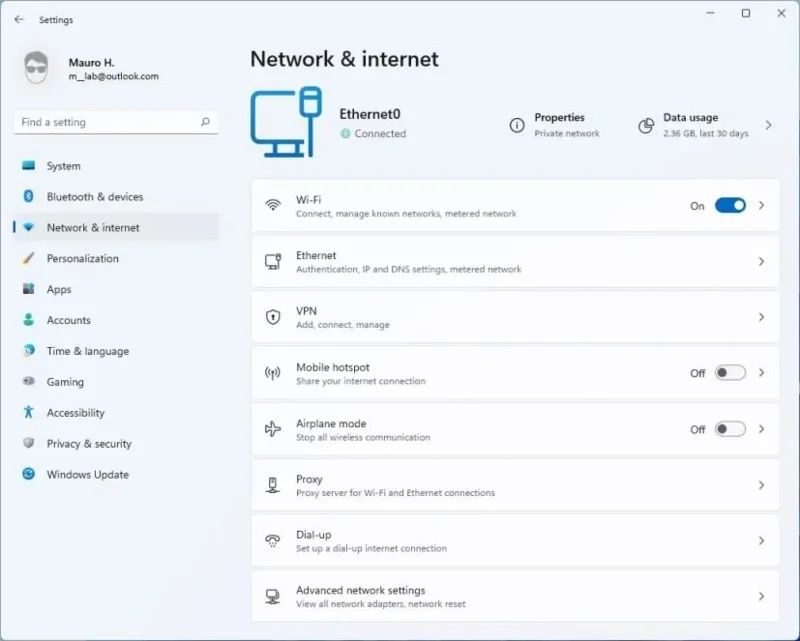
In the Network & internet section for hero controls, you will see the active network connections, connection properties, and data usage. This part of the Settings app includes the settings for Ethernet, Wi-Fi, VPN, Mobile hotspot, Airplane mode, Proxy, Dial-up, and Advanced network settings.
Windows 11 Network & internet
Wi-Fi
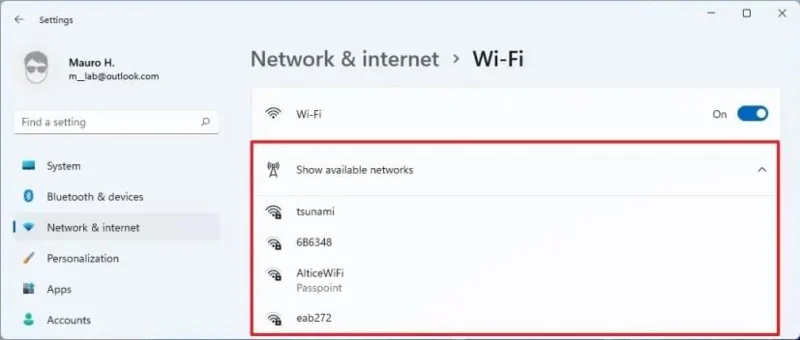
The Wi-Fi page isn’t new, but it has been tweaked with an option to view the available wireless networks within the app.
Windows 11 Wi-Fi settings
Ethernet
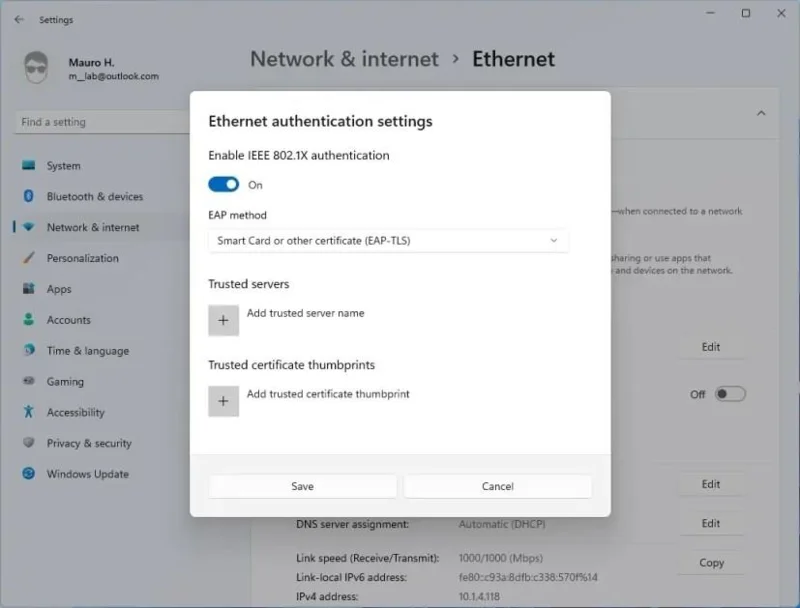
The Ethernet page now includes an option to set up IEEE 802.1x network authentication settings. (In previous versions, this needed to be done in Control Panel.)
IEEE 802.1X authentication
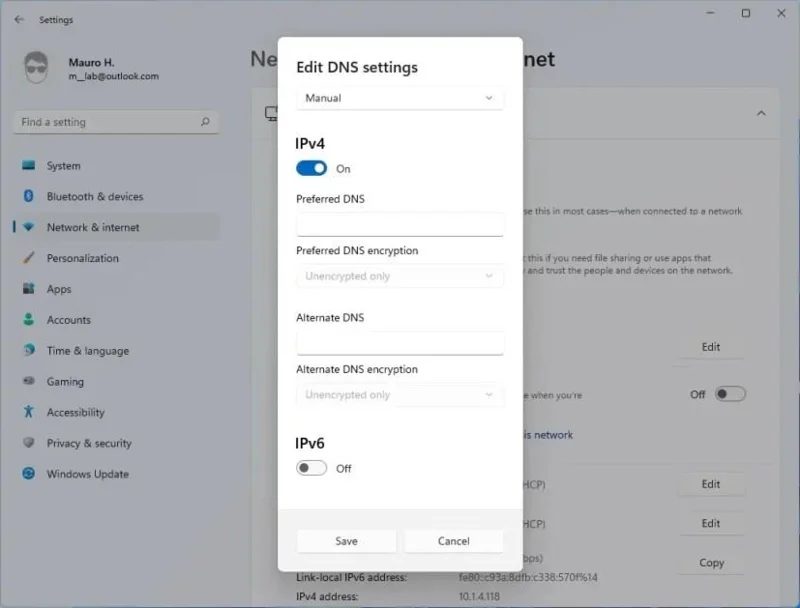
You can now configure Domain Name System (DNS) without opening the Internet Protocol (IP) configuration page.
Windows 11 DNS only settings
Finally, starting on Windows 11, you can configure DNS over HTTPS (DoH) to encrypt DNS queries using the Hypertext Transfer Protocol Secure (HTTPS) protocol.
Advanced network settings
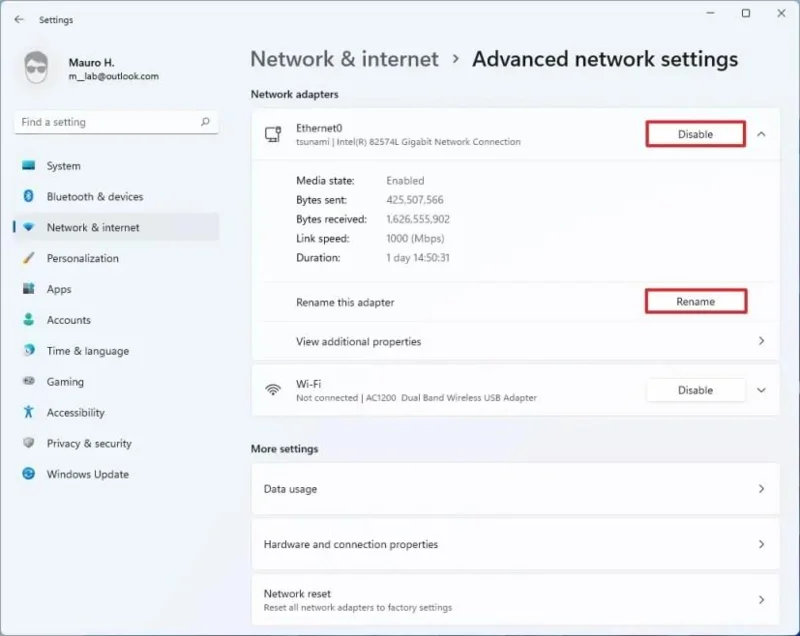
The Advanced network settings page is new, and it includes the options to enable or disable, rename, and view the status of network adapters. (In previous versions, this needed to be done in Control Panel.)
Advanced network settings
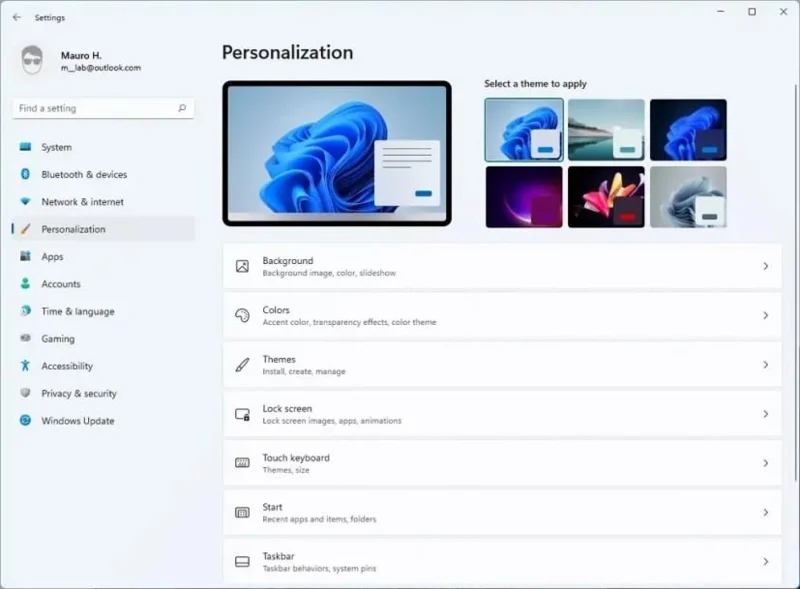
Personalization settings
While the Personalization section is not new, it has a lot of improvements. For example, the section now shows the six new default themes and a preview of the desktop as hero controls, and it houses the settings for Background, Colors, Themes, Lock screen, Touch keyboard, Start, Taskbar, Fonts, and Device usage.
Windows 11 Personalization settings
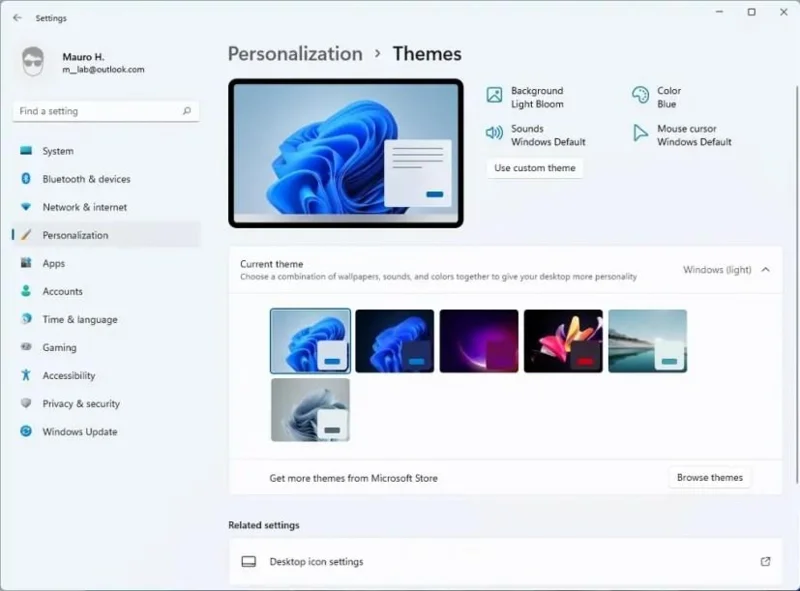
Themes
The Themes page is almost identical to the previous version, with the difference that it includes six new default settings.
Themes settings
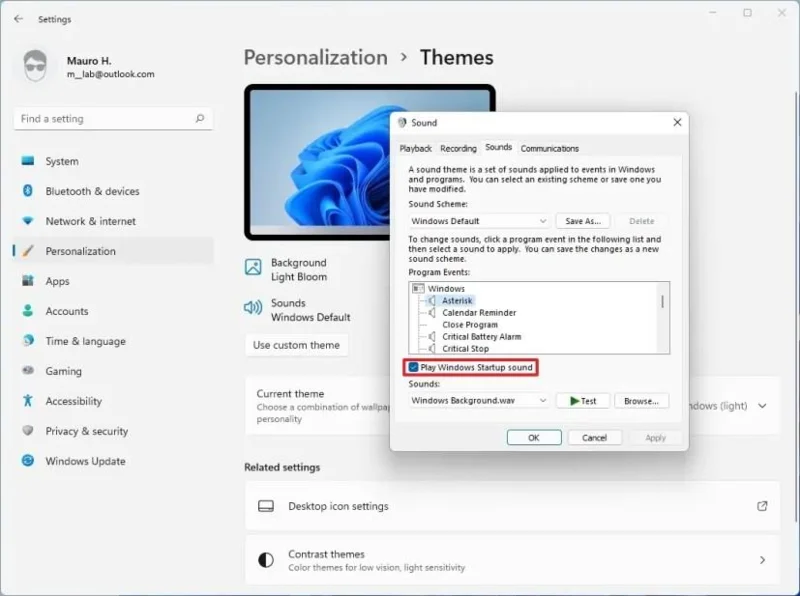
On the Sounds page, you will also find that the “Play Windows Startup sound” option is now enabled by default, and this is because Windows 11 is also bringing back the startup sound again. However, the Windows startup sound will not play after the computer reboots automatically to apply updates.
In addition, you will now find new default sounds for pretty much every action in the latest version of Windows. Microsoft has been created a slightly different sound theme when using the dark mode.
Windows 11 startup sound
You can check out the new sounds by selecting each event and pressing the Test button.
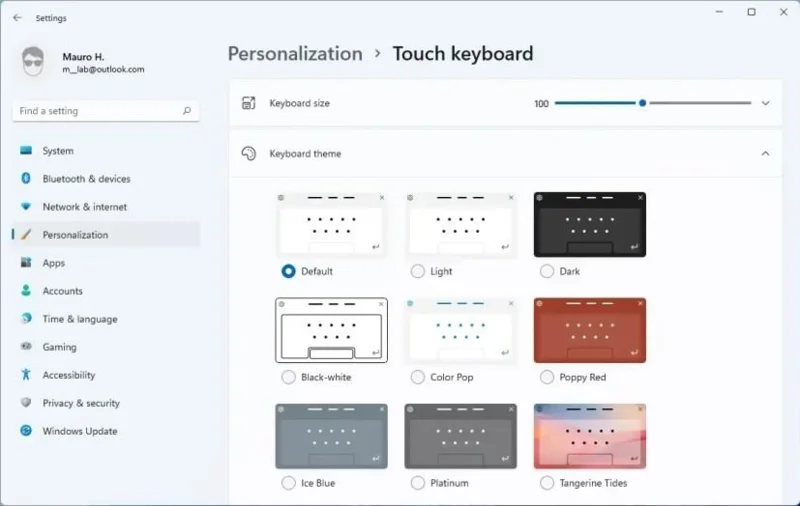
Touch keyboard
The Touch keyboard page is new and houses the settings to adjust the on-screen keyboard, including settings to change the keyboard size, theme with the option to show background and change the size of keys.
Touch keyboard settings
Start
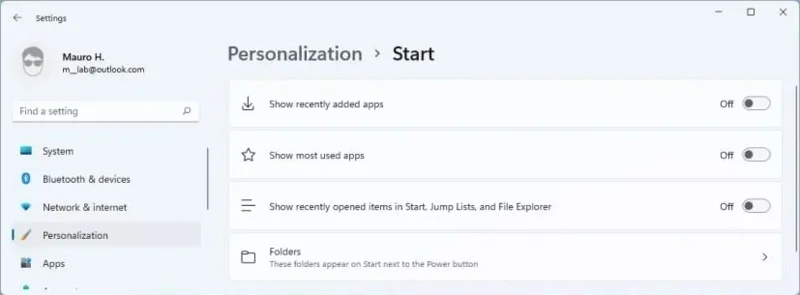
The Start page includes the new settings to customize the Start menu. For instance, you will now find the options to show or hide recently added and most-used apps. You can also control whether or not to show items in the jump list and the “Recommended” section.
Start settings on Windows 11
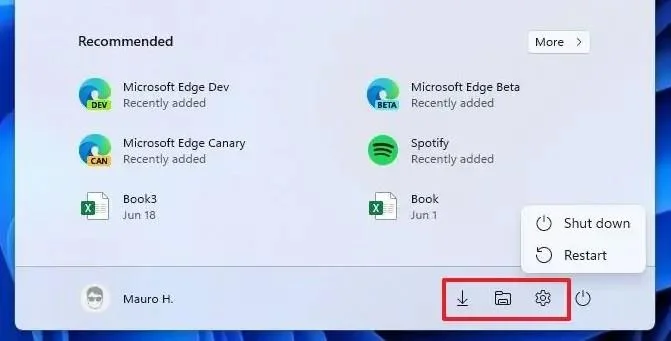
In addition, the Folders setting lets you decide what folder (or quick links for File Explorer, Settings, etc.) appear next to the profile menu in the Start menu.
Taskbar
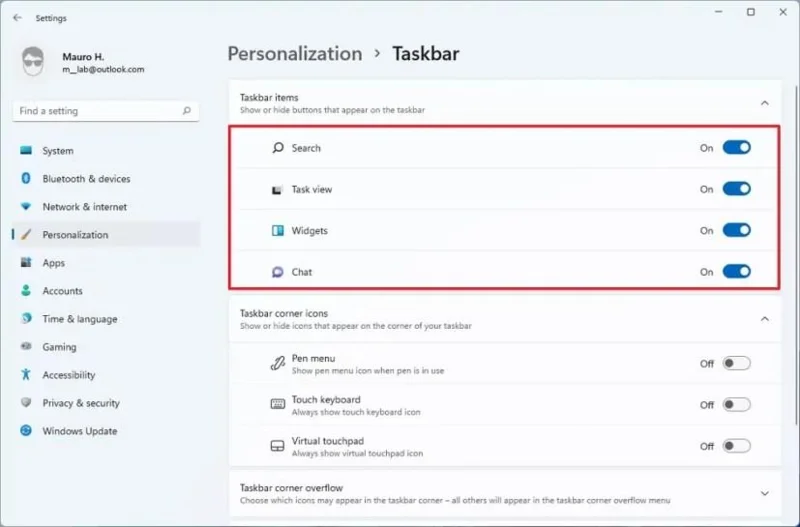
The Taskbar page no longer includes the options to change the Taskbar location, height, or icon size. Instead, the settings reflect the new features, including showing or hiding the Search, Task View, Widgets, and Chat buttons.
Taskbar settings
You can show or hide the “Pen menu,” “Touch keyboard,” and “Virtual touchpad” buttons that appear in the system tray. Also, you can control which items appear in the overflow menu.
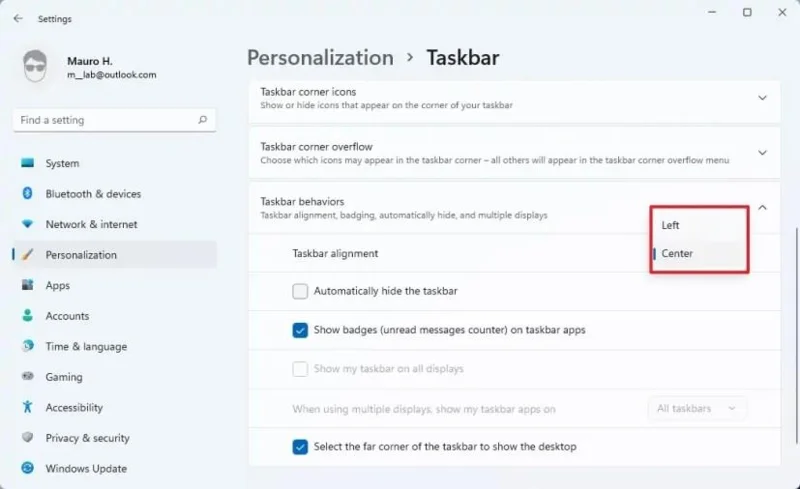
Taskbar behaviors
Finally, in the “Taskbar behaviors” settings, you can change the Taskbar alignment to the left and center. You can also enable auto-hide the Taskbar, show badges for unseen messages, disable the show desktop button, and control the experience in a multiple display setup.
Device usage
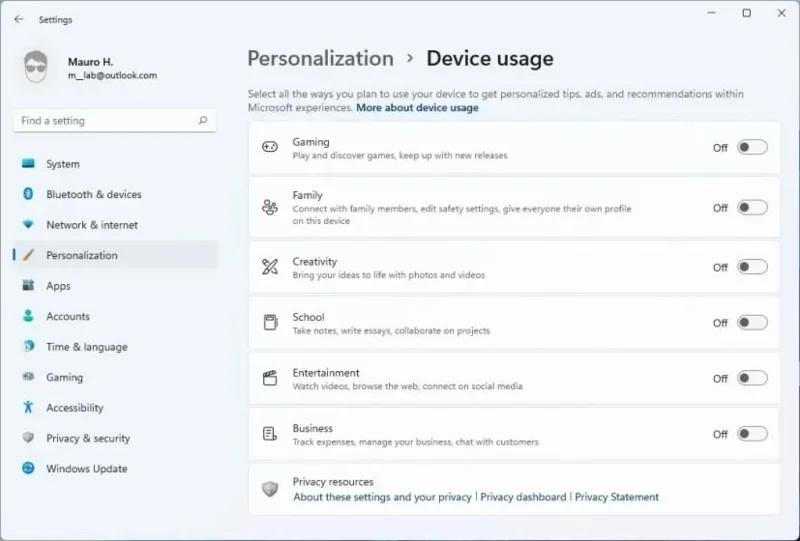
The Device Usage is new, and it lets you specify how you plan to use the computer so that Windows 11 can tailor the ad experience.
Device usage
Apps settings
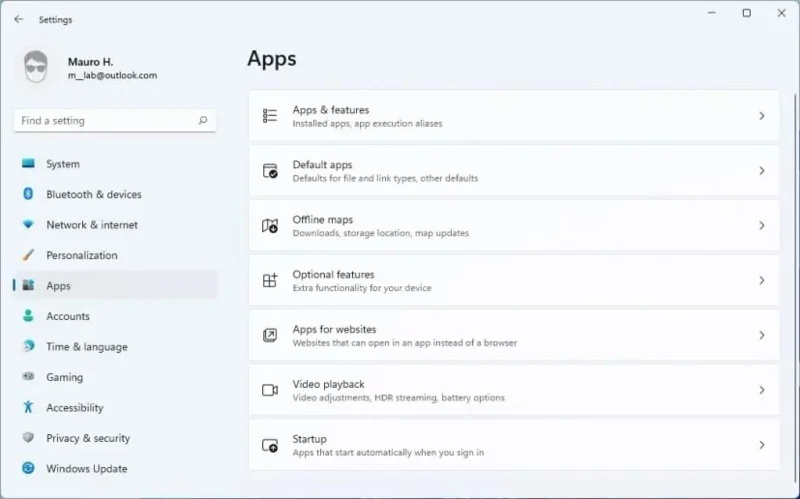
The Apps section includes the settings for Apps & features, Default, Offline maps, Optional features, Apps for websites, Video playback, and Startup.
Windows 11 Apps settings
Apps & features
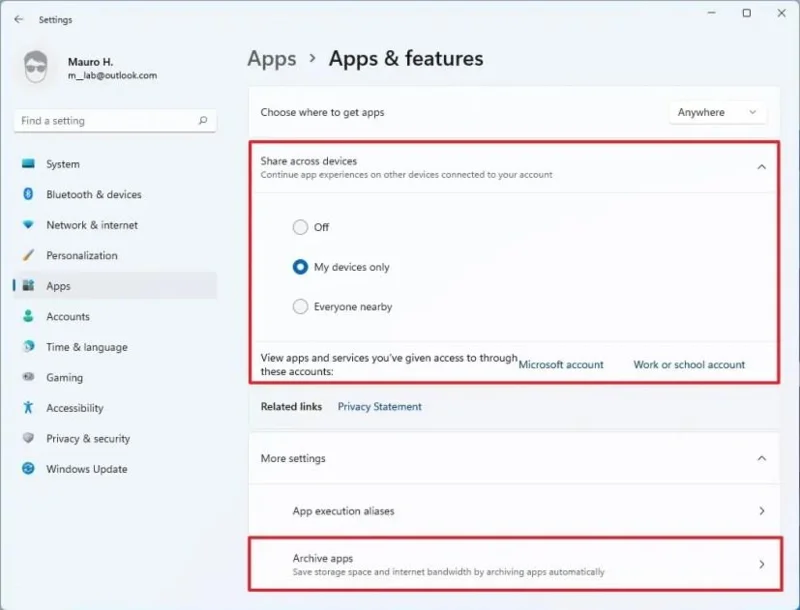
The Apps & features page is not changing significantly, but you will find a new “Share across devices” feature, allowing you to pick up an app you left off on another device.
Apps & features settings
When you select “More settings,” you will notice a new Archive apps feature.
The feature is meant to archive apps you don’t often use to save space and internet data. The next time you try to open the app, it’ll connect to the internet and download the full version again. Of course, this is if the app is still available in the Microsoft Store.
Optional features
The Optional features page used to be part of the “Apps & features” page, but it’s now a separate page.
Accounts settings
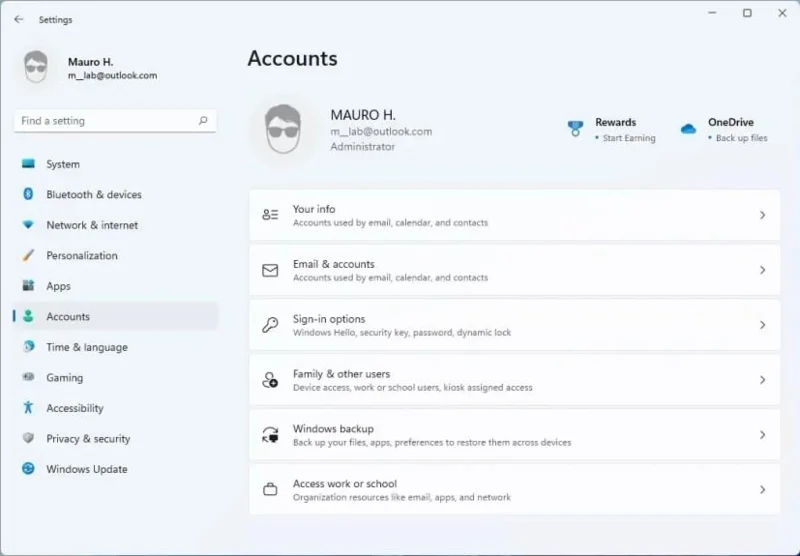
The Accounts section displays the current user information, OneDrive, and Microsoft Bing rewards details for hero controls. As part of the settings, in this section, you will find the settings for Your info, Email & accounts, Sign-in options, Family & other users, Windows backup, and Access work or school.
Windows 11 Accounts settings
Windows backup
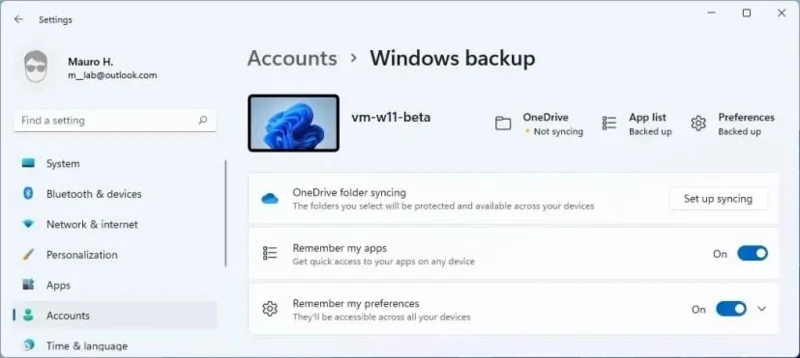
The Windows backup page is new to Windows 11 and includes the settings to control the OneDrive folder syncing and sync app and system preference settings to the cloud.
Windows Backup settings
For control heroes, you will see the status for “Preferences,” “App list,” and “OneDrive backup.”
Time & language
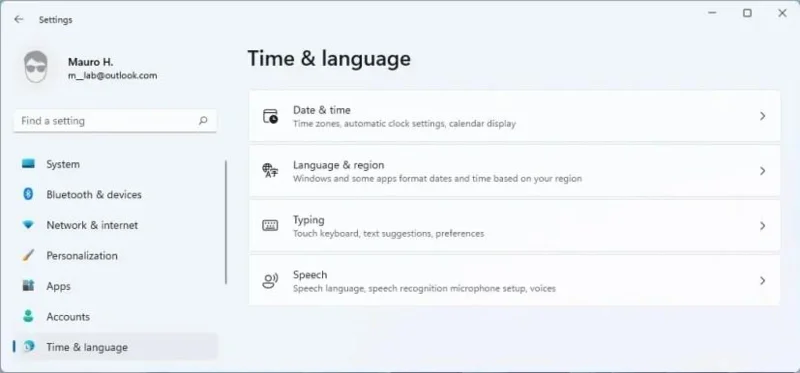
The Time & language section includes the settings for Date & time, Language & region, Typing, and Speech pages.
Windows 11 Time & language
Typing
The Typing page isn’t new to Windows 11, but the settings were located in the “Devices” section.
Accessibility
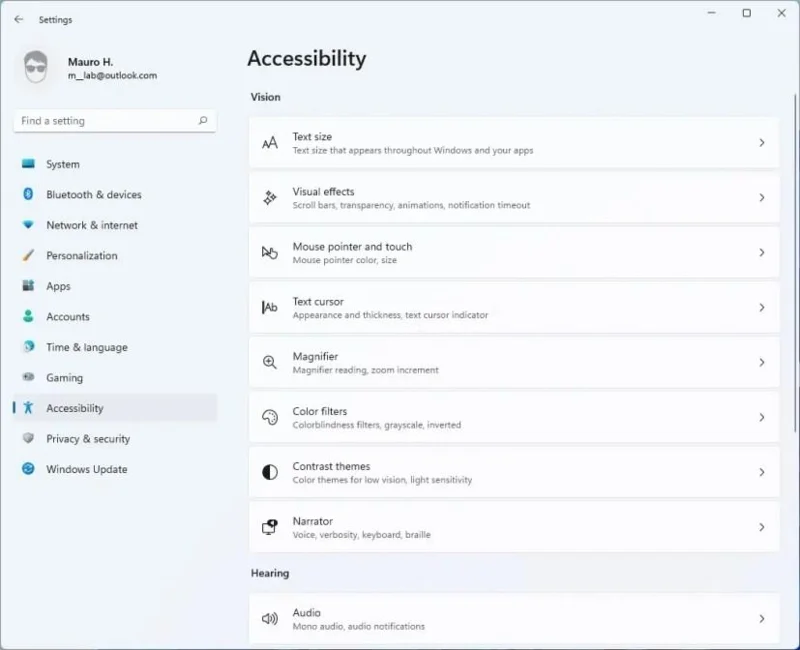
Formerly known as “Ease of access,” the Accessibility section houses the settings Text size, Visual effects, “Mouse pointer and touch,” Text cursor, Magnifier, Color filter, Contrast themes, Narrator, Audio, Captions, Speech, Keyboard, Mouse, and Eye control.
Windows 11 Accessibility settings
Visual effects
The “Display” settings page has now been renamed to “Visual effects,” and the settings are the same as before.
Mouse pointer and touch
The “Mouse pointer” page has been renamed to “Mouse pointer and touch,” and the settings are the same as before.
Privacy & security
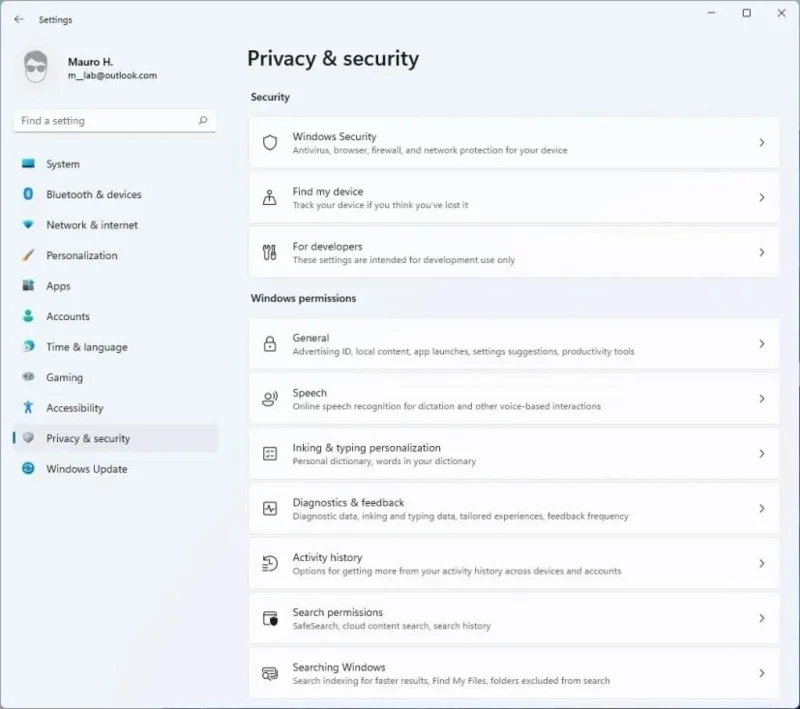
On Windows 11, the “Privacy” page has been renamed to “Privacy & security.” This page includes the settings for General, Speech, Inking & typing Personalization, Diagnostic & feedback, and Activity History. Also, in this area is where you will now find Search permissions and Searching Windows pages.
Windows 11 Privacy & security settings
Since this section also includes security settings, you will find the Windows Security, Find my device, Device encryption, and For developers pages.
Screenshot borders
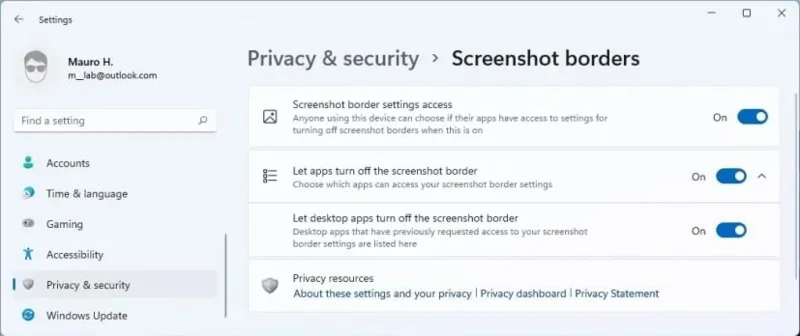
On Windows 11, the Screenshot borders page is new, and it allows you to control if apps can choose to access the screenshot borders.
Screenshot borders settings
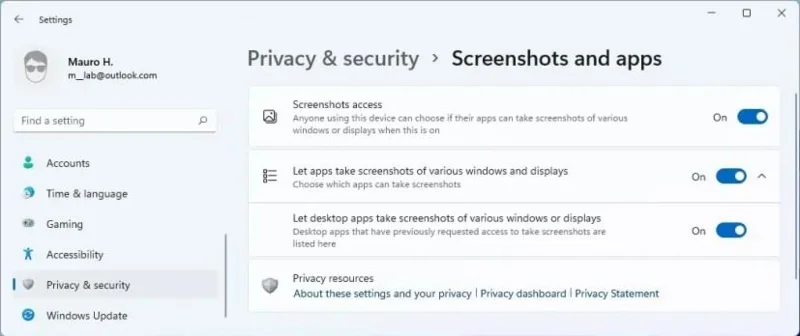
Screenshot and apps
The Screenshot and apps page is new for this release, and it includes the settings to decide which apps can grab screenshots.
Screenshots and apps settings
Windows Update
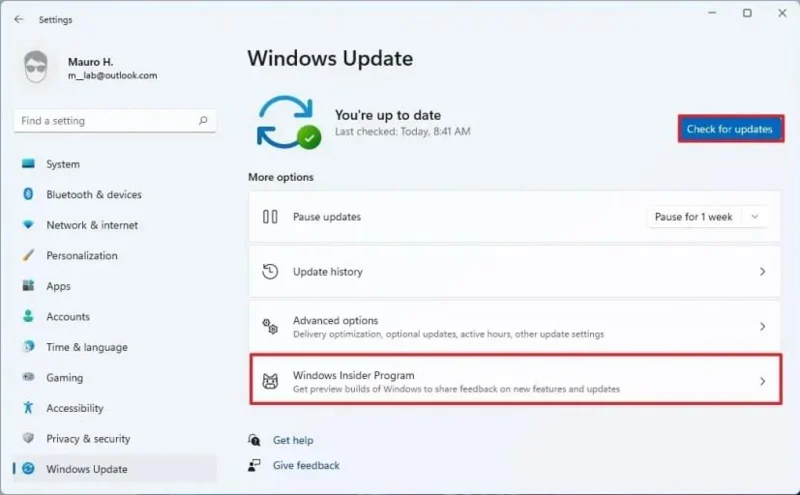
The Windows Update section is a new section on Windows 11. The page now includes colorful icons and improvements to communicate the status of updates better. Also, in this section that’s where you will find the settings to view the Update history, access the Advanced options, and enroll a computer in the Windows Insider Program.
Windows Update settings
In addition, when a new update is ready for your device, the Settings app will inform you how long it will take to apply it. However, this feature is only available for Solid-State Drives (SSD) devices.
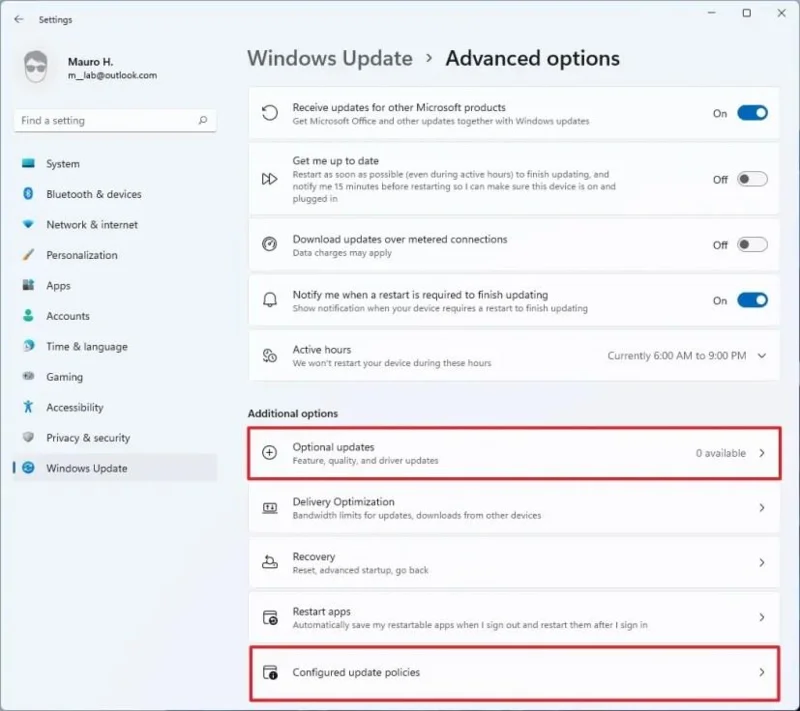
Advanced options
The Advanced options page now includes a Configured update policies page that shows all the Group Policy policies currently applied to the device.
Advanced options
Also, on this page, you find the page to view and install optional updates available for your device.
Language updates
The Scottish Gaelic keyboard now uses AltGr + 7 to input ⁊ (U+204A TIRONIAN SIGNET), pressing’ will now insert the characters, and Alt Gr +’ now acts as a dead key to add the acute accent with a subsequent letter.
Also, when pressing Shift + 6 will now insert ߾ (U+07FE ), and pressing Shift + 7 will now insert ߿ (U+07FF) for the N’Ko keyboard layout.
Japanese IME improvements and touch keyboard
Windows 11 updates the new Japanese IME to support switching between Hiragana and Katakana using CTRL + CAPSLOCK and ALT + CAPSLOCK (respectively), as it was supported with the previous version.
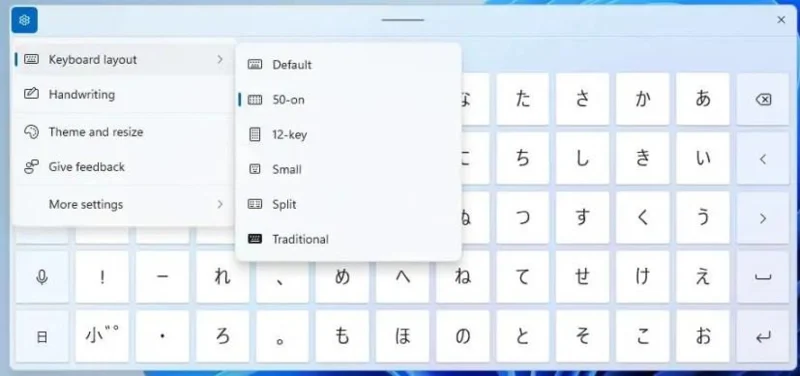
Microsoft is also introducing the “50-on touch keyboard” layout for the Japanese language. This is a popular layout that allows you to input Japanese texts intuitively without knowing how to compose Hiragana characters.
Japanese 50-on keyboard layout
You can use the new layout by clicking the Settings button and selecting the “50-on” option. It also provides alphabet and symbol views newly explicitly designed for the layout.
Input Method Editor (IME)
Microsoft is introducing a new version of all available IMEs that includes a new modern design using the Fluent Design System, including acrylic background, selection visual, and dark theme support.
There are some font adjustments in the candidate interface to minimize intrusiveness while securing visibility. Also, the new design is expanding to more languages.
Also, in this version, Windows integrates the new IME candidate windows design for Japanese, Chinese Traditional, and Indic IMEs.
Korean IME improvements
If you type in Korean, you’ll also find a new version of the Korean IME with improvements in the typing experience.
Windows Subsystem for Linux (WSL) new features
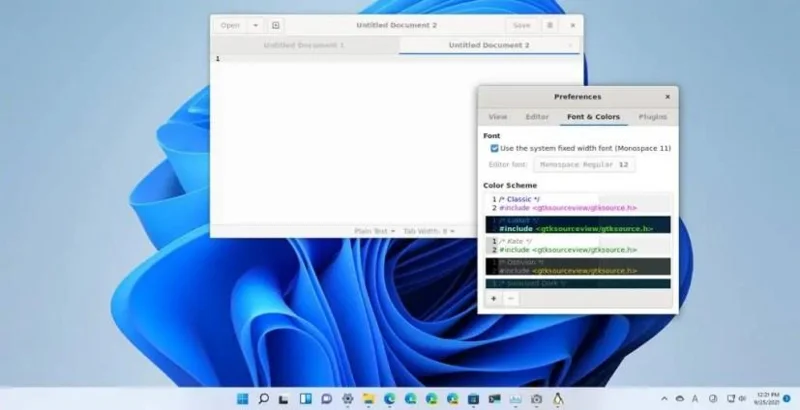
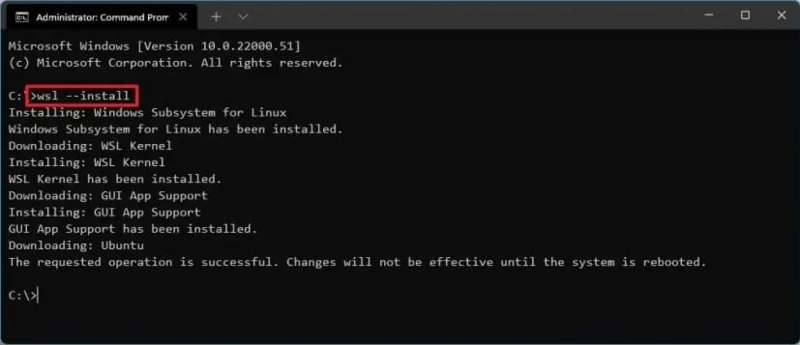
Windows 11 มาพร้อมกับ Windows Subsystem for Linux (WSL) เวอร์ชันอัปเดตที่รองรับความสามารถในการติดตั้งแอป Linux GUI (ส่วนต่อประสานกราฟิกกับผู้ใช้) ราวกับว่าถูกติดตั้งไว้บน Windows
แอพ Linux GUI บน Windows 11
พูดอีกอย่างก็คือ ตอนนี้คุณสามารถใช้ตัวแก้ไข เครื่องมือ และแอปพลิเคชัน Linux ที่คุณชื่นชอบบน Windows 11 ได้โดยไม่จำเป็นต้องสลับอุปกรณ์หรือสร้างเครื่องเสมือน
คุณลักษณะนี้มีขึ้นเพื่อพัฒนาและทดสอบแอปของคุณบน Linux แต่คุณสามารถใช้การใช้งานนี้กับทุกสถานการณ์ แอป Linux GUI บน Windows ยังรองรับลำโพงและไมโครโฟนด้วย ซึ่งหมายความว่าหากคุณติดตั้งแอปสื่อ อุปกรณ์ต่อพ่วงจะถูกส่งผ่านและปรากฏในแอป กราฟิก 3D ที่เร่งด้วย GPU ยังได้รับการสนับสนุนเพื่อเรียกใช้แอปใดๆ ที่จำเป็นต้องทำการเรนเดอร์ 3D ที่ซับซ้อนโดยใช้ประโยชน์จาก OpenGL
เมื่อติดตั้งแอป Linux GUI แล้ว แอปจะลงทะเบียนในเมนู Start ซึ่งหมายความว่าคุณสามารถเปิดแอปได้โดยพิมพ์ชื่อบนคอนโซล Windows Subsystem for Linux (WSL) หรือคุณสามารถเปิดใช้ได้เหมือนกับเป็นอย่างอื่น แอปพลิเคชันโดยใช้เมนูเริ่ม
หากคุณเปิดแอปจากเมนู Start คุณจะพบรายการในรายการ "เพิ่มล่าสุด" และคุณสามารถค้นหาได้ภายในโฟลเดอร์ (ชื่อ distro) ด้านล่างรายการ distro Linux
คุณจะสังเกตเห็นว่าแถบงานจะแสดงไอคอนที่มีโลโก้ Linux ซึ่งบ่งชี้ว่าคุณไม่ได้ใช้งานแอปพลิเคชัน Windows 11
ประสบการณ์การใช้แอป Linux แบบกราฟิกบน Windows 11 ให้ความรู้สึกดั้งเดิม แต่ไม่ใช่ แอปแสดงผลด้วยรูปแบบภาพ Linux ทั้งหมดสำหรับเฟรม เมนู และองค์ประกอบอื่นๆ และยังมีเงารอบๆ เฟรม และทุกหน้าต่างทำงานแยกจากกัน อย่างไรก็ตาม เป็นการเชื่อมต่อเดสก์ท็อประยะไกล ซึ่ง Microsoft มีแนวโน้มว่าจะใช้ประโยชน์จากคุณลักษณะ RemoteApp ที่มีอยู่ในระบบปฏิบัติการ
เคอร์เนลลินุกซ์แบบกำหนดเองจากอิมเมจระบบ Windows ถูกลบ และขณะนี้พร้อมใช้งานผ่าน Microsoft Store
บน Windows 11 คุณสามารถแนบและติดตั้งไดรฟ์ที่มีอยู่จริงภายใน Windows Subsystem for Linux distros คุณลักษณะนี้ช่วยให้คุณสามารถเข้าถึงระบบไฟล์ที่ไม่ได้รับการสนับสนุนโดยกำเนิด (เช่น ext4) ซึ่งหมายความว่าถ้าคุณมีระบบดูอัลบูตที่ใช้ Windows 11 และ Linux และใช้ไดรฟ์อื่นอยู่ ขณะนี้คุณสามารถเข้าถึงไฟล์ Linux ได้จาก Windows 11
นอกจากนี้ยังมีตัวเลือกใหม่ในการเรียกใช้คำสั่ง Linux เมื่อเริ่มต้นระบบย่อยของ Windows สำหรับ Linux (WSL)
Microsoft ยังได้ทำงานเพื่อให้กลับมาทำงานต่อจากโหมดสลีปได้เร็วขึ้น สิ่งนี้เป็นไปได้เนื่องจากการเพิ่มประสิทธิภาพสำหรับการเรียกส่วนประกอบฮาร์ดแวร์ที่ต้องเปิดเพื่อกลับสู่การทำงานจากโหมดสลีปเพื่อปรับปรุงการจัดการหน่วยความจำ
นอกจากนี้ ที่เลเยอร์ซอฟต์แวร์ Windows 11 กำลังทำการเปลี่ยนแปลงโค้ด ซึ่งจะส่งผลให้เวลากลับมาทำงานต่อเร็วขึ้นประมาณ 25 เปอร์เซ็นต์ เมื่อใช้เทคนิคใหม่เหล่านี้ Microsoft อ้างว่าผู้ใช้ส่วนใหญ่จะกลับมาทำงานอุปกรณ์จากโหมดสลีป “เกือบจะในทันที” และอุปกรณ์สามารถ “อยู่ในสถานะสลีปนานขึ้นและไม่จำศีลบ่อย”
เร็วกว่า Windows สวัสดี ลงชื่อเข้าใช้
Windows 11 ยังมาพร้อมกับ “การเพิ่มประสิทธิภาพโค้ด” ที่ทำให้ กระบวนการลงชื่อเข้าใช้ Windows Helloเร็วขึ้นถึง 30 เปอร์เซ็นต์ ซึ่งเป็นส่วนหนึ่งของการปรับปรุงประสิทธิภาพ
ลดรอยเท้าของระบบ
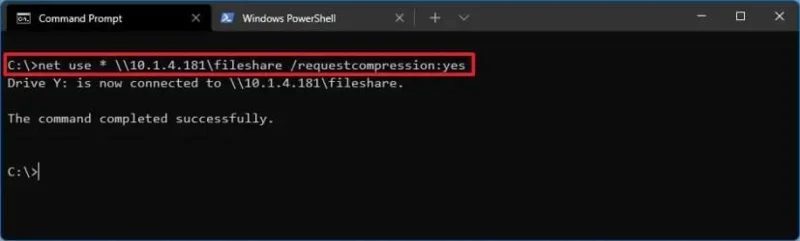
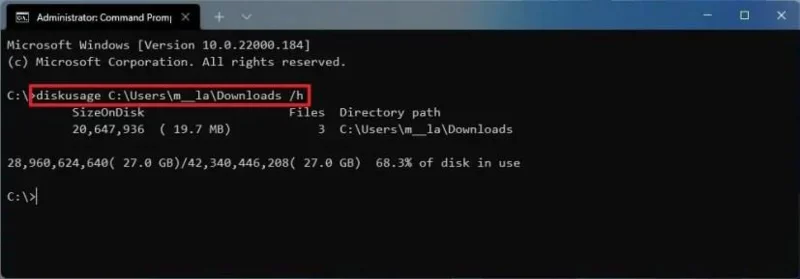
นอกจากนี้ Windows 11 ยังช่วยลดรอยเท้าโดยรวมอีกด้วย ทำได้โดยการขยายการใช้เทคโนโลยีการบีบอัด นอกจากนี้ แอปในตัวที่ไม่สำคัญและส่วนประกอบอื่นๆ (เช่น Microsoft To Do, Sticky Notes, Power Automate) สถานะเริ่มต้นของแอปเหล่านั้นคือ "stub" ที่ลดพื้นที่บนฮาร์ดไดรฟ์ กิจกรรมการดาวน์โหลดพื้นหลัง และปริมาณการใช้ข้อมูลดาวน์โหลด .
และ Windows 11 ยังช่วยลดการใช้พื้นที่เก็บข้อมูลที่เกิดจากแคชของระบบและเบราว์เซอร์
การอัปเดตที่เล็กลงและเร็วขึ้น
หลังจากติดตั้ง Windows 11 คุณจะสังเกตเห็นว่าการอัปเดตจะดาวน์โหลดและติดตั้งเร็วขึ้น ทั้งนี้เนื่องจาก Windows มีการเพิ่มประสิทธิภาพหลายอย่างให้กับกลไกการอัพเดท ซึ่งช่วยปรับปรุงวิธีการจัดแพ็คเกจการอัปเดต
ตัวอย่างเช่น เมื่อมีการเผยแพร่การอัปเดตใหม่ Windows 11 จะเปรียบเทียบส่วนประกอบที่มีอยู่ในคอมพิวเตอร์แล้วดึงเฉพาะการเปลี่ยนแปลงที่จำเป็นเท่านั้น ทำให้การอัปเดตมีขนาดเล็กลงถึง 40 เปอร์เซ็นต์
นอกจากนี้ แทนที่จะปล่อยสองรายการ ขณะนี้ Microsoft กำลังวางแผนที่จะเผยแพร่การอัปเดตคุณลักษณะเพียงหนึ่งครั้งต่อปีเท่านั้น
ประสบการณ์ครั้งแรก
ระบบปฏิบัติการใหม่แนะนำประสบการณ์การใช้งานครั้งแรกโดยใช้แอพ "เคล็ดลับ" ที่อัปเดตเพื่อเน้นการเปลี่ยนแปลงที่สำคัญที่สุดหลังจากติดตั้งการอัปเดตคุณสมบัติหลักบนอุปกรณ์ (คุณลักษณะนี้จะแทนที่หน้าต้อนรับของ Microsoft Edge หลังจากติดตั้งการอัปเดตคุณลักษณะใหม่เพื่อช่วยให้ผู้ใช้เข้าใจคุณลักษณะและการเปลี่ยนแปลงและวิธีใช้งานได้ดียิ่งขึ้น)
เพื่อหลีกเลี่ยงความสับสน Microsoft ได้นำปุ่มการทำงานด่วนของโหมดแท็บเล็ตออกจากอุปกรณ์ที่ไม่ใช่แบบสัมผัส กล่าวอีกนัยหนึ่ง เฉพาะอุปกรณ์ที่เปิดใช้งานระบบสัมผัสเท่านั้นที่จะสามารถเปลี่ยนเป็นประสบการณ์การสัมผัสได้
ประสบการณ์การใช้งานที่ออกแบบใหม่ (OOBE) สำหรับ Windows 11
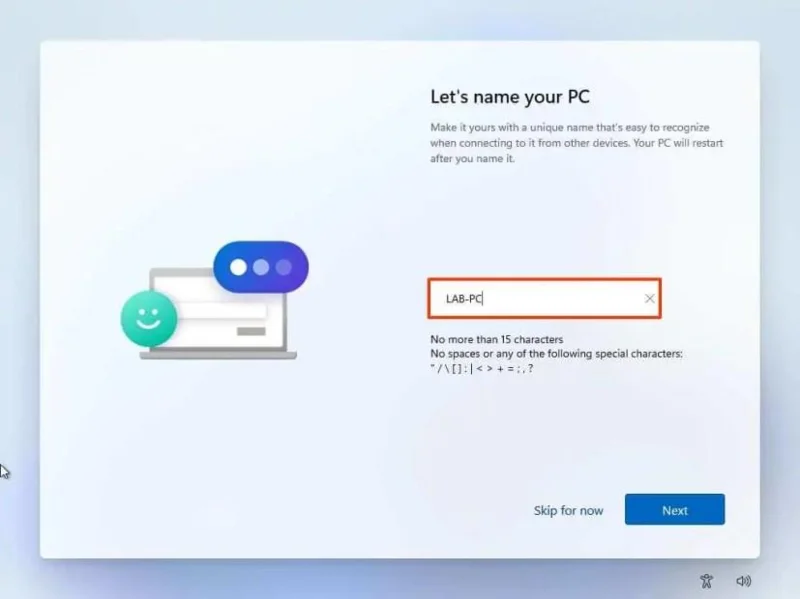
Windows 11 กำลังเปิดตัวประสบการณ์ใหม่แกะกล่อง (OOBE ) นี่คือประสบการณ์ที่คุณมักจะใช้เพื่อทำการตั้งค่าระบบปฏิบัติการเบื้องต้นให้เสร็จสมบูรณ์ด้วยบัญชีใหม่ การตั้งค่าความเป็นส่วนตัว และค่ากำหนดแบบกำหนดเอง เมื่อตั้งค่าอุปกรณ์ใหม่หรือหลังการติดตั้งใหม่ทั้งหมด
Windows 11 OOBE
ประสบการณ์ใหม่นี้เปลี่ยนจากสีน้ำเงินและสีเข้มไปเป็นสีขาวและสีเทาด้วยอินเทอร์เฟซที่ใช้งานง่ายและเป็นมิตรมากขึ้น เพื่อให้เข้ากับภาษาการออกแบบที่ทันสมัยของ Windows 11
คุณยังจะได้พบกับแอนิเมชั่นใหม่เมื่อคุณเลื่อนดูแต่ละหน้า Microsoft ยังเพิ่มตัวเลือกในการตั้งชื่อคอมพิวเตอร์เมื่อคุณตั้งค่าในเวอร์ชันใหม่นี้เสร็จสิ้น ตัวเลือกในการสร้างบัญชีออนไลน์ถูกฝังอยู่ในหน้า "ตัวเลือกการลงชื่อเข้าใช้" และเมื่อตั้งค่า Windows 11 Home ผู้ใช้จะต้องเชื่อมต่ออินเทอร์เน็ต และพวกเขาจะถูกบังคับให้สร้างบัญชีด้วยบัญชี Microsoft . อย่างไรก็ตาม มีวิธีแก้ปัญหาชั่วคราวเพื่อข้ามข้อกำหนดและดำเนินการต่อด้วยบัญชีออฟไลน์
แอพ Windows 11 ที่ออกแบบใหม่และในตัวใหม่
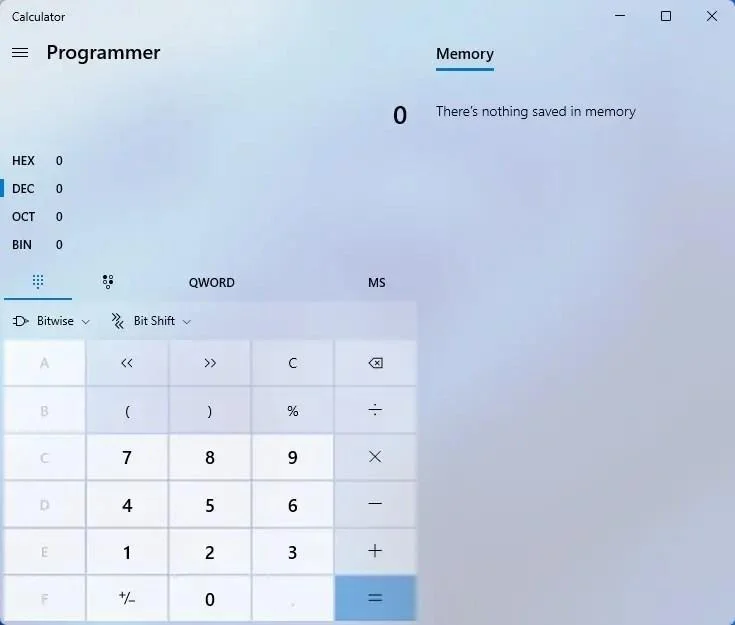
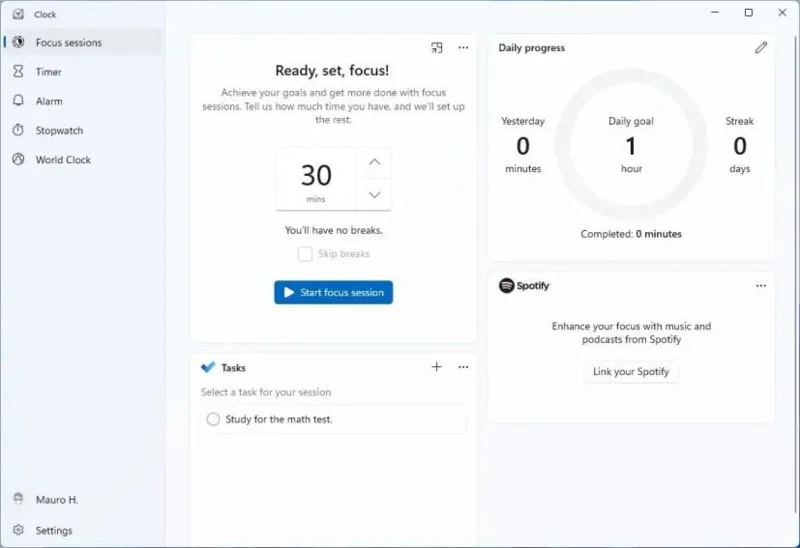
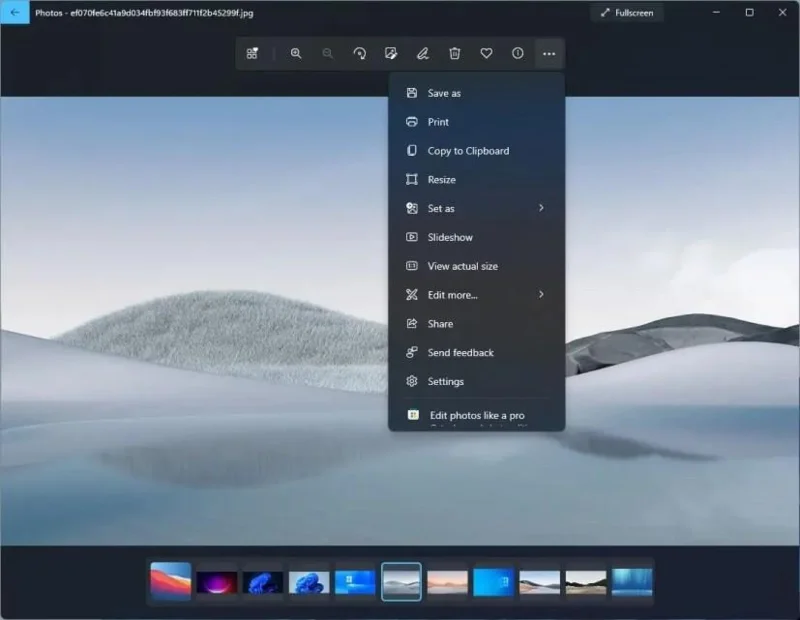
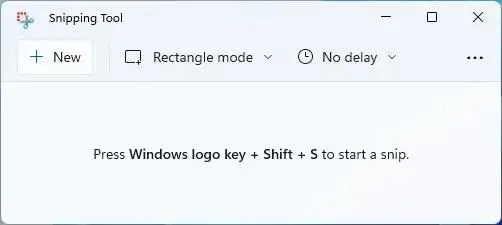
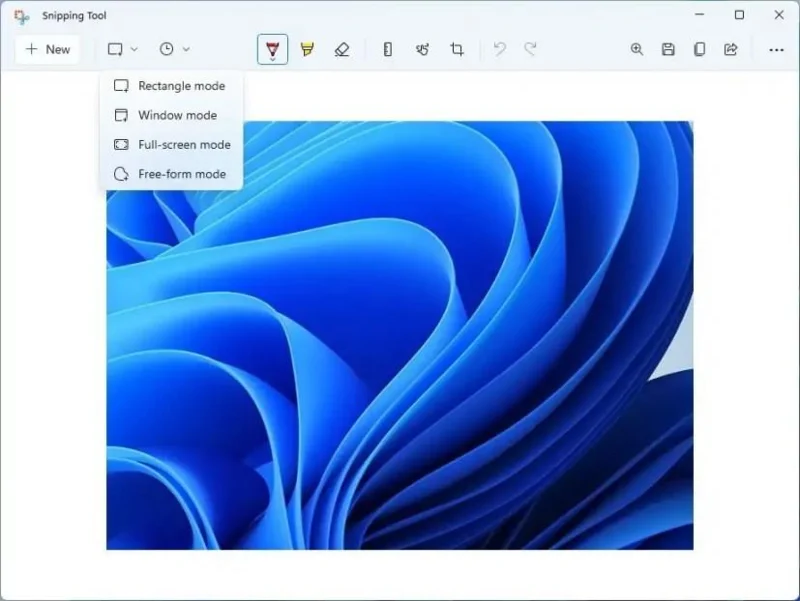
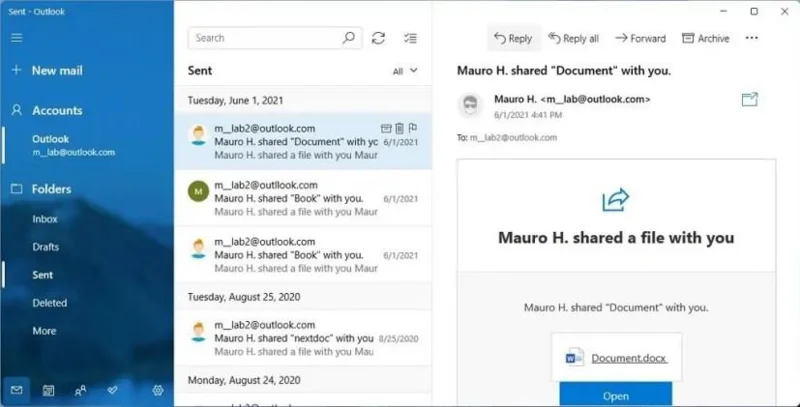
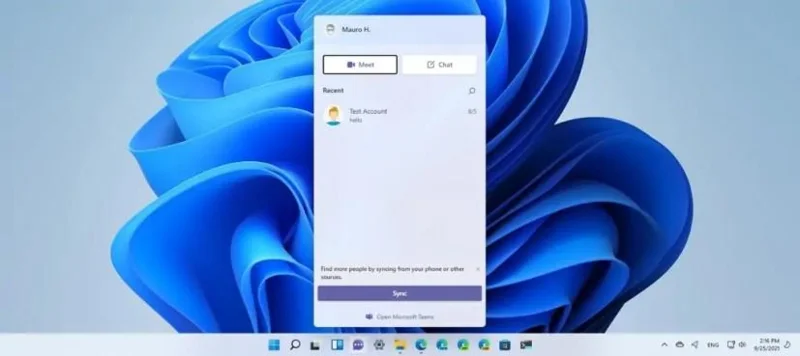
ในฐานะที่เป็นส่วนหนึ่งของการยกเครื่อง Windows 11 ใหม่ Microsoft ยังได้อัปเดตแอปกล่องจดหมายจำนวนมาก เช่น Microsoft Store, Paint, เครื่องคิดเลข, นาฬิกา, เคล็ดลับ และ Snipping Tool และแนะนำแอปใหม่อีกสองสามแอป เช่น Power Automate และ Chat จาก ไมโครซอฟต์ทีม.
Microsoft Store
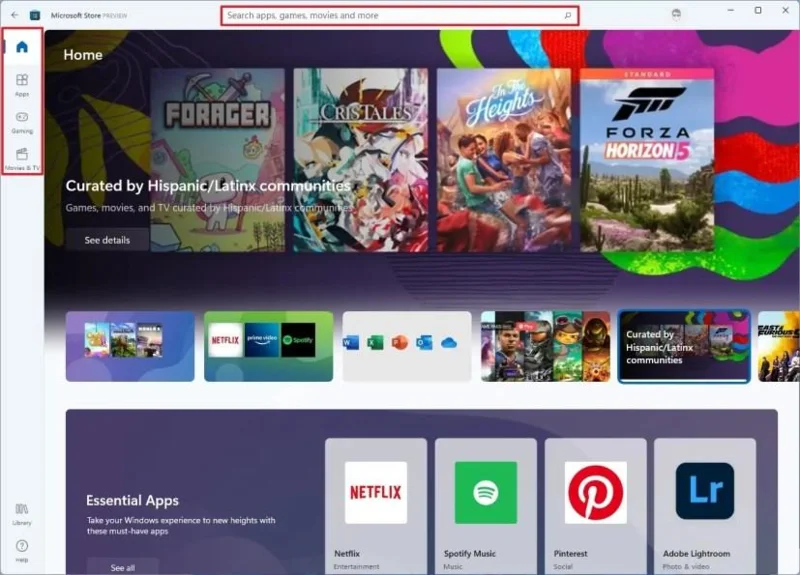
บางทีหนึ่งในการปรับปรุงที่ใหญ่ที่สุดใน Windows 11 คือการเพิ่มแอป Microsoft Store ใหม่ แอพได้รับการออกแบบใหม่ด้วยอินเทอร์เฟซและแอนิเมชั่นใหม่ ทำให้ค้นหาและค้นพบเนื้อหาได้ง่ายขึ้น เมื่อคุณเปิดแอปครั้งแรก คุณจะสังเกตเห็นว่าช่องค้นหาอยู่กึ่งกลางที่ด้านบน และตอนนี้การนำทางจะปรากฏขึ้นที่ด้านซ้าย
สุดท้ายนี้ Microsoft Store จะอนุญาตให้นักพัฒนาสร้างแอปประเภทใดก็ได้ รวมถึง Win32, .NET และเว็บแอปแบบเดิม นอกจากนี้ ตอนนี้นักพัฒนาซอฟต์แวร์มีตัวเลือกที่จะนำแพลตฟอร์มการสร้างรายได้ของตนเองมาใช้เพื่อรักษารายได้ทั้งหมด แต่ตัวเลือกในการใช้บริการการค้าของ Microsoft จะยังคงมีอยู่
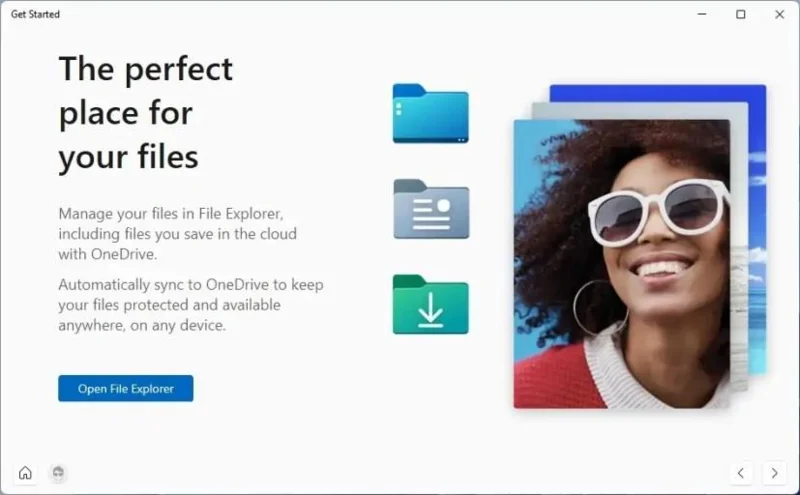
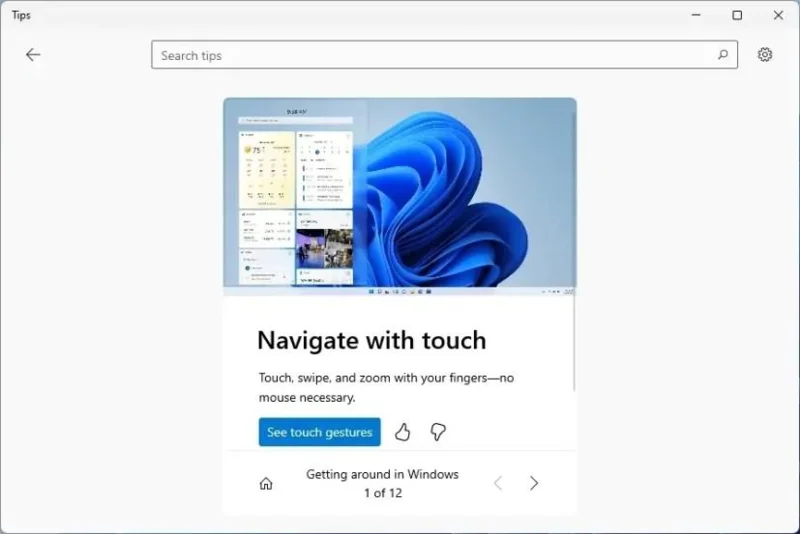
นอกจากนี้ แอป Tipsยังได้รับการอัปเดตและเป็นแอปที่คล้ายกับ Get Started แต่มีเคล็ดลับเพื่อเรียนรู้เพิ่มเติมเกี่ยวกับวิธีใช้ Windows 11 แอปดังกล่าวมีให้ใช้งานในเวอร์ชันก่อนหน้า แต่ตอนนี้มีอินเทอร์เฟซที่ตรงกับภาษาการออกแบบใหม่ และมีเคล็ดลับใหม่ ๆ มากกว่าร้อยรายการ
แอพ Windows 11 Tips
เครื่องคิดเลข
แอ พ เครื่องคิดเลขยังได้รับการอัปเดตอีกด้วย เวอร์ชันใหม่นี้ได้รับการเขียนใหม่ใน C # และนำเสนอรูปลักษณ์ใหม่ที่เป็นไปตามภาษาการออกแบบใหม่ของ Microsoft ที่มีมุมโค้งมนและวัสดุใหม่
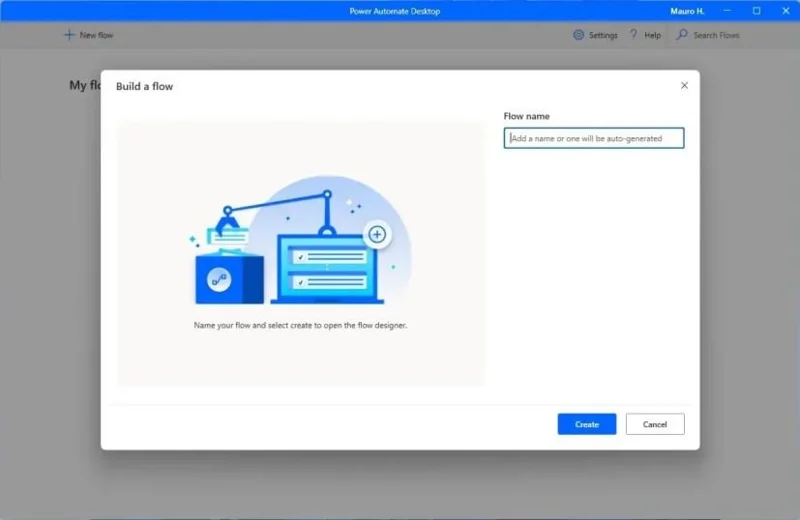
Power Automateเป็นแอปใหม่ที่ช่วยให้คุณสามารถทำให้แอปพลิเคชันบนเว็บและเดสก์ท็อป เป็นแบบอัตโนมัติ โดยเลียนแบบการดำเนินการของอินเทอร์เฟซผู้ใช้ เช่น การคลิกและการป้อนข้อมูลด้วยแป้นพิมพ์เพื่อทำงานซ้ำๆ โดยอัตโนมัติ
แอพ Windows 11 Power Automate
บทสรุป
โดยรวมแล้ว Windows 11 เป็นระบบปฏิบัติการใหม่ที่ยอดเยี่ยมซึ่งแนะนำส่วนต่อประสานที่จำเป็นอย่างยิ่งและนำเสนอคุณสมบัติและการปรับปรุงใหม่มากมาย เวอร์ชันล่าสุดดูมีความเสถียรมาก และเนื่องจากใช้ Windows 10 ไดรเวอร์และแอปพลิเคชันส่วนใหญ่จึงควรทำงานในเวอร์ชันใหม่นี้